Screen Recorder for Browser: 2026 Options Compared
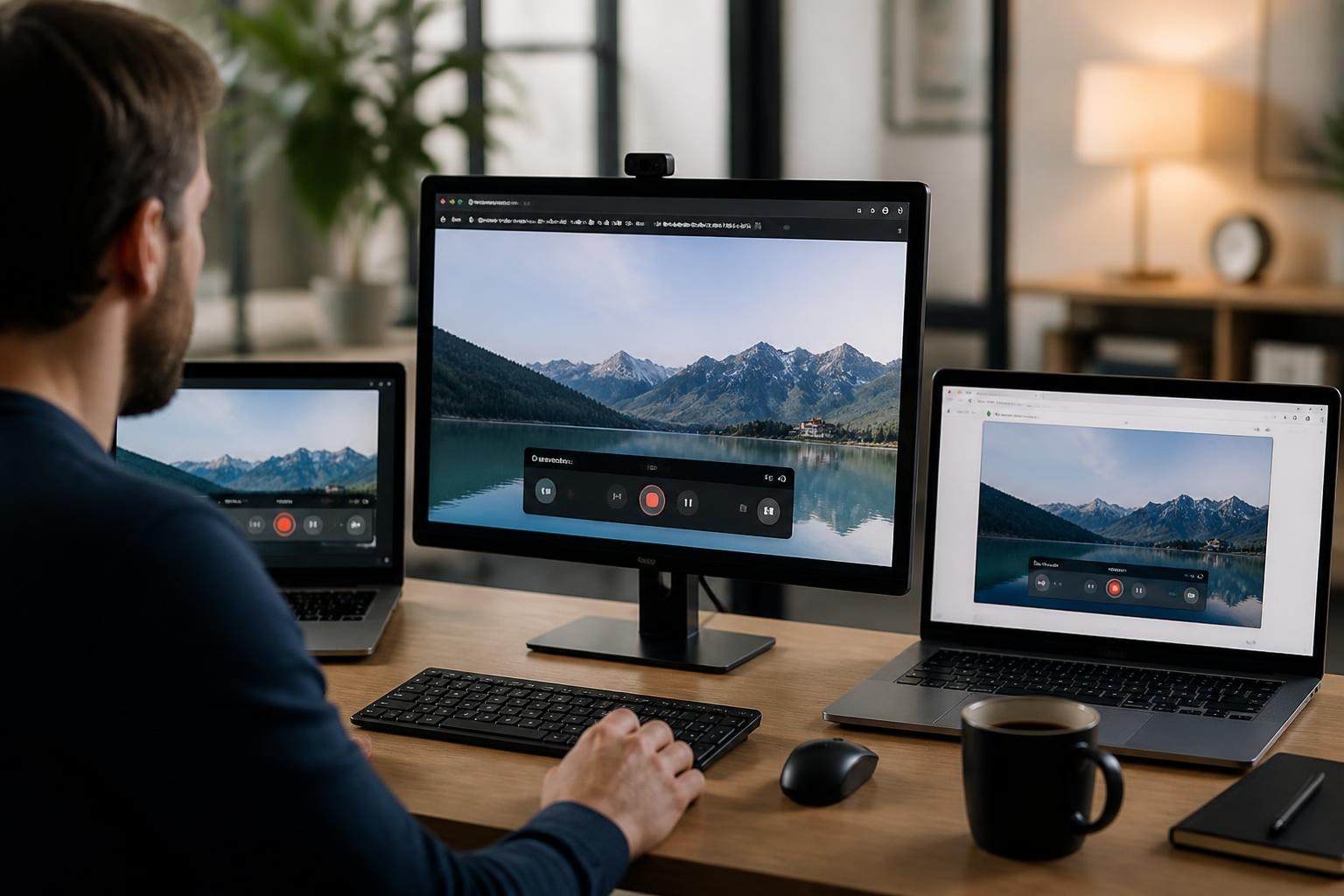
Choosing a screen recorder for browser use has never been more crucial, especially as remote work and async communication continue to dominate in 2026. Whether you're creating tutorials, reporting bugs, or sharing updates with your team, the right tool can save you hours of typing and endless email threads. The big question isn't whether you need screen recording anymore - it's which type of browser-based recorder fits your workflow best.
Browser Extensions vs. Web Apps: Which Path Should You Take?
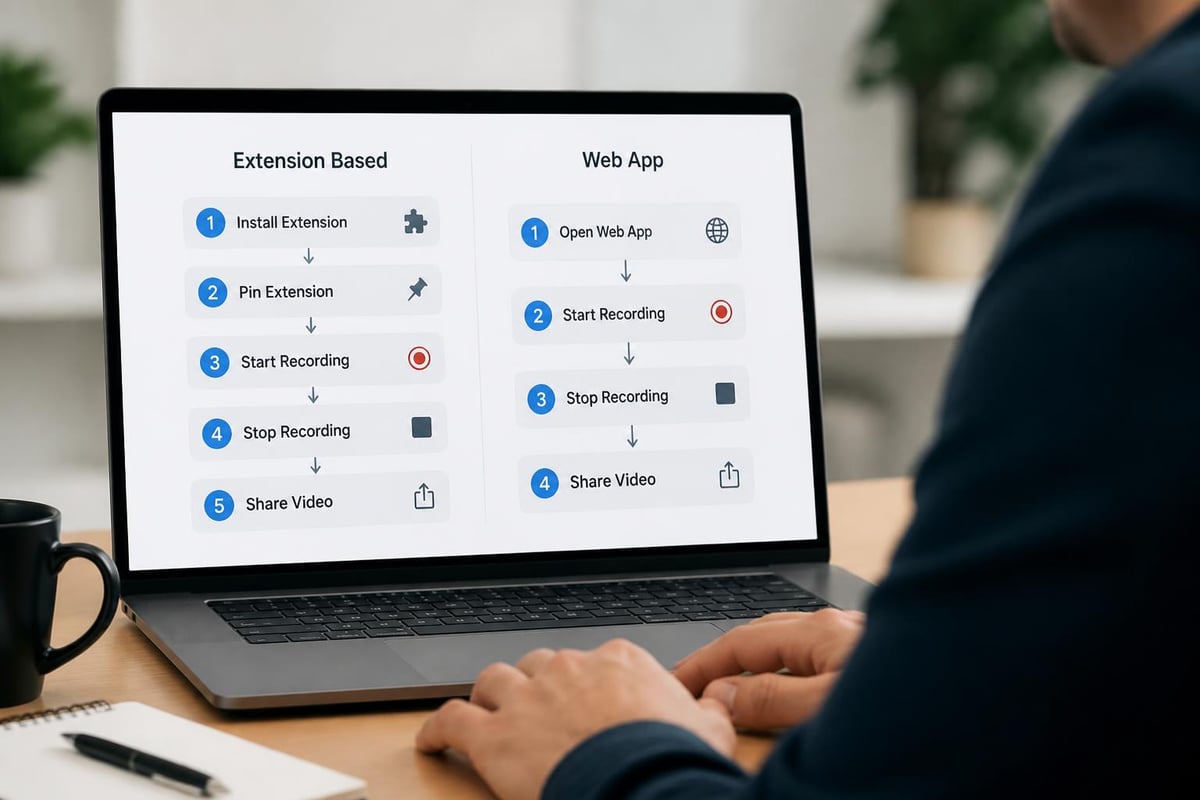
When you're looking for a screen recorder for browser workflows, you'll find two main camps: extensions that live in your browser toolbar and standalone web apps that work entirely online. Both have their merits, and understanding the differences helps you pick the right tool.
Browser extensions install directly into Chrome, Firefox, or Edge, giving you instant access through a small icon. They typically start recording with just a couple clicks and integrate tightly with your browsing experience.
Web-based screen recorders don't require installation - you just visit their website and grant permissions. They're perfect if you can't install software on a work computer or switch between devices frequently.
Here's how they stack up:
| Feature | Browser Extensions | Web Apps |
|---|---|---|
| Installation | One-time setup | No installation needed |
| Access Speed | Instant from toolbar | Requires visiting website |
| Storage | Often cloud-based | Usually local or cloud options |
| Updates | Automatic | No updates needed |
| Cross-browser | Limited to one browser | Works anywhere |
The Performance Question
Extensions generally feel snappier because they're already loaded in your browser's memory. Web apps need to initialize each time you visit, though modern browsers have gotten pretty good at caching resources.
The real performance difference shows up during actual recording. Extensions can tap into browser APIs for screen capture more efficiently, while web apps sometimes introduce an extra layer of processing.
Free vs. Paid: Where's the Value in 2026?
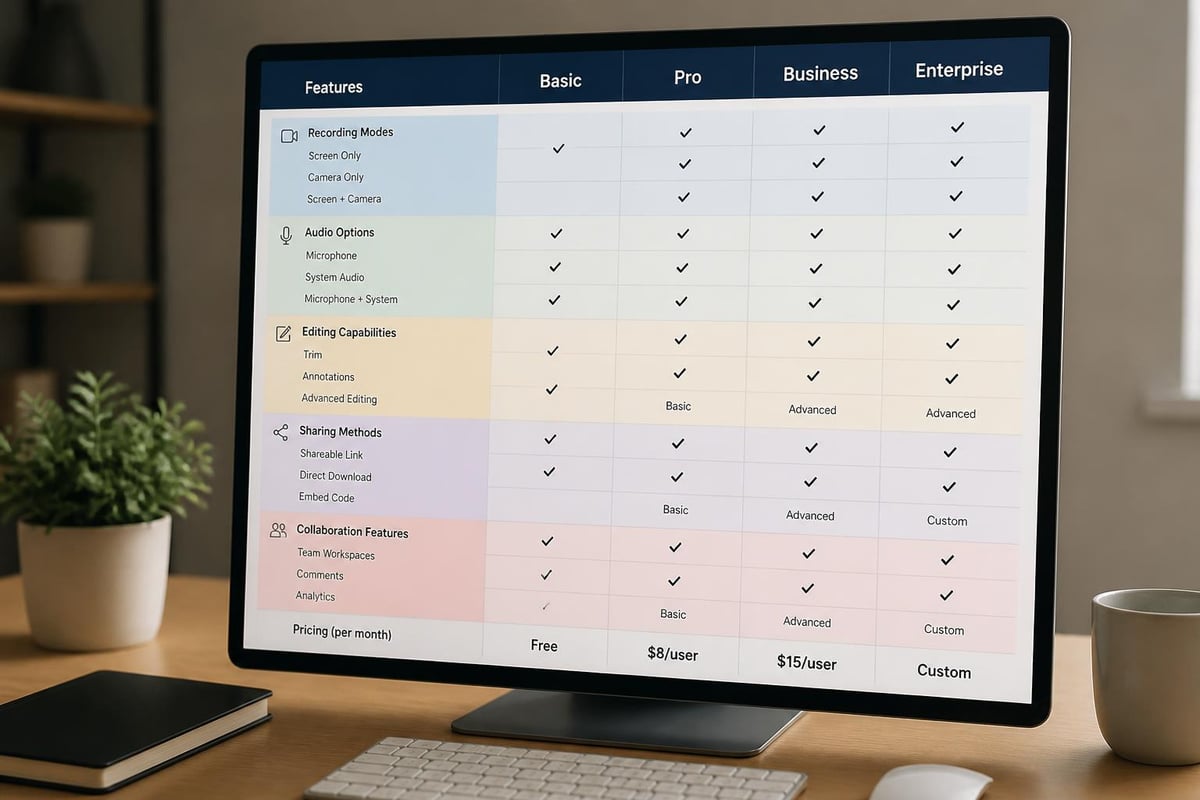
The screen recorder for browser market has exploded with both free and premium options. Understanding what you're actually paying for makes this decision easier.
Free tools typically include:
- Time limits (often 5-10 minutes per recording)
- Watermarks on exported videos
- Basic editing capabilities
- Limited storage or export options
- Standard video quality
Premium subscriptions usually add:
- Unlimited recording length
- No watermarks or branding
- Advanced editing and annotation tools
- Cloud storage with organization features
- Higher resolution options (up to 4K)
- Team collaboration features
- Priority support
Is it worth paying? Depends on your use case.
If you're recording occasional quick demos or bug reports, free tools work fine. You can find comprehensive reviews of free screen recorders that cover the basics without costing a dime.
But if you're creating professional content, onboarding materials, or collaborative team documentation, those watermarks and time limits get old fast. Premium features like searchable transcripts, team sharing, and annotation tools actually save time in your workflow.
Hidden Costs Nobody Talks About
Free tools often mean your recordings live on someone else's server with uncertain privacy policies. Premium options typically offer better security, including password protection and controlled sharing - crucial if you're recording sensitive work information.
Storage is another sneaky cost. That "unlimited" free tier might delete your videos after 30 days, forcing you to re-record or pay for archival access.
Feature Breakdown: What Actually Matters?
Shopping for a screen recorder for browser use means wading through marketing jargon. Let's cut through it and focus on features that genuinely impact your daily use.
Recording Modes
- Full screen capture: Records everything on your monitor
- Window capture: Isolates a single application window
- Tab capture: Records just one browser tab (perfect for avoiding accidental exposure of other work)
- Camera overlay: Adds your webcam feed to recordings
Most browser-based recorders offer at least three of these options. The tab capture feature is especially valuable because it prevents you from accidentally recording notifications, messages, or other tabs you have open.
Audio Options
You'll want flexibility here:
- System audio: Captures sounds from your computer (videos, music, game audio)
- Microphone input: Records your narration
- Both simultaneously: Essential for tutorials where you're talking over a video
- No audio: Silent recordings for situations where you'll add voiceover later
Some advanced tools let you record separate audio tracks for easier editing later - a game-changer if you mess up your narration partway through.
Editing and Annotation Tools
Basic tools let you trim the start and end of videos. Better options include:
- Drawing tools for highlighting important areas
- Text overlays to add context or instructions
- Blur/redact features for hiding sensitive information
- Cut and splice for removing mistakes or dead air
- Cursor highlighting so viewers can follow your mouse movements
Mool, for instance, goes beyond basic recording by converting your screen captures into searchable knowledge through AI, adding features like instant sharing, annotation tools, and password protection - essentially turning recordings into organized documentation rather than just video files.
Privacy and Security: The 2026 Landscape
With increasing concerns about data privacy, understanding how your screen recorder for browser handles your content matters more than ever.
Key privacy considerations:
- Where are recordings processed? (locally vs. cloud)
- Who owns the content you create?
- Can recordings be accessed by the tool provider?
- What happens to your data if you cancel?
- Are there encryption options for sensitive content?
Many modern browser recorders like Convertful's screen recorder process recordings locally, meaning your videos never leave your computer unless you explicitly upload them. This approach offers maximum privacy but limits collaboration features.
Cloud-based solutions offer better sharing and team features but require trust in the provider's security measures. Look for tools that offer:
- End-to-end encryption for stored videos
- Granular sharing controls (password protection, expiration dates)
- SOC 2 or similar compliance certifications
- Clear data retention policies
The Accidental Recording Problem
Here's something nobody thinks about until it happens: accidentally recording sensitive information. Your screen recorder for browser might capture passwords from autofill, private messages, or confidential documents in other tabs.
Protect yourself by:
- Using tab capture instead of full screen when possible
- Closing sensitive tabs before recording
- Reviewing footage before sharing
- Using tools with built-in redaction features
- Setting up a dedicated browser profile for recording
Platform Compatibility and Integration
Not all screen recorders for browser work the same across different browsers and operating systems. This gets complicated fast if you work on multiple devices or collaborate with teammates using different setups.
| Browser | Extension Support | Web App Compatibility | Special Considerations |
|---|---|---|---|
| Chrome | Excellent | Perfect | Most extensions built for Chrome first |
| Edge | Excellent | Perfect | Chromium-based, works with Chrome extensions |
| Firefox | Good | Perfect | Separate extension versions needed |
| Safari | Limited | Perfect | Fewer extension options, web apps work fine |
| Brave | Excellent | Perfect | Chrome extensions compatible |
Mobile vs. Desktop Recording
Most browser-based screen recorders focus on desktop use, but 2026 has brought better mobile support. However, recording from mobile browsers faces limitations due to iOS and Android restrictions.
If you need mobile recording, you're usually better off with native apps rather than trying to force browser-based solutions. But for desktop work, browser recorders shine because they're always available and don't require switching contexts.
Integration with Other Tools
The best screen recorder for browser workflows doesn't exist in isolation. Look for tools that connect with:
- Slack or Teams for instant sharing with teammates
- Project management tools like Asana or Notion for attaching videos to tasks
- Cloud storage (Google Drive, Dropbox) for automatic backups
- CMS platforms if you're creating content for websites
- Learning management systems for training materials
Use Case Scenarios: Matching Tools to Tasks
Different recording situations demand different features from your screen recorder for browser setup. Understanding various methods to record video content helps you choose the right approach for each scenario.
Quick Bug Reports
For developers submitting bug reports, you need:
- Fast startup time
- Tab recording to capture just the affected page
- Cursor highlighting to show click locations
- Instant sharing links
- No time limits (bugs don't fit 5-minute caps)
Extensions work best here because they're always ready. Tools like DevZone's screen recorder let you capture and share without uploading to external servers, keeping your potentially sensitive development work private.
Tutorial and Training Videos
Creating instructional content requires:
- High-quality video output (1080p minimum)
- System and microphone audio recording
- Editing capabilities for polishing
- No watermarks for professional appearance
- Easy export options for different platforms
You'll probably want a premium tool here. The editing features and quality options justify the cost when you're creating content that represents your brand.
Team Collaboration and Async Updates
For standups, status updates, or project walkthroughs, prioritize:
- Quick recording without setup
- Automatic transcription for accessibility
- Shareable links with view tracking
- Commenting and feedback features
- Search functionality for finding old recordings
This is where AI-powered tools really shine. Being able to search through old recordings by what was said, not just titles, transforms your video library from a dumping ground into actual documentation.
Client Presentations and Demos
When recording for clients or external stakeholders:
- Password protection for confidential content
- Custom branding options
- Analytics to see if they watched
- Download options for their records
- Professional export quality
Premium features matter most in client-facing scenarios. A watermark on an internal bug report is annoying; on a client presentation, it's unprofessional.
Performance and Resource Usage
A screen recorder for browser runs alongside everything else you're doing, so resource usage matters. Nobody wants their computer grinding to a halt just to record a quick demo.
What impacts performance:
- Resolution settings: 4K recording uses significantly more CPU and RAM than 1080p
- Frame rate: 60fps recordings are smoother but demand more processing power
- Audio processing: Recording multiple audio sources simultaneously adds overhead
- Real-time editing: Tools that apply effects during recording use more resources
- Background uploads: Cloud tools uploading while you record can slow things down
Most modern screen recorders for browser are pretty efficient, but you'll notice the difference on older machines or when recording intensive activities like games or video editing.
Optimizing Your Recording Setup
Get better performance by:
- Closing unnecessary tabs and applications before recording
- Using tab capture instead of full screen when possible
- Recording at 30fps instead of 60fps for most content (tutorials don't need cinematic smoothness)
- Choosing 1080p over 4K unless you absolutely need higher resolution
- Disabling real-time effects and adding them in post-processing instead
The AI Revolution in Screen Recording
2026's biggest shift in screen recorders for browser is the integration of artificial intelligence. These aren't gimmicks - they genuinely change how recordings become useful.
AI features worth having:
- Automatic transcription: Converts speech to searchable text
- Smart summaries: Generates key points from longer recordings
- Action item extraction: Identifies tasks mentioned in videos
- Searchable content: Find specific moments by searching what was said
- Auto-captioning: Adds subtitles for accessibility
- Content tagging: Automatically categorizes recordings by topic
The difference between traditional screen recording and AI-enhanced recording is like the gap between storing files in random folders versus having a smart assistant that knows exactly where everything is and what it contains.
Research into screen activity tracking shows how visual history can aid information retrieval, and modern AI tools apply these principles to make your recording library actually searchable and useful months later.
Setup and Workflow Optimization
Getting started with a screen recorder for browser should be quick, but optimizing your workflow takes some thought. Here's how to set yourself up for success.
Initial Setup Checklist
Before recording your first video:
- Grant necessary permissions (screen capture, microphone, camera)
- Configure default settings (resolution, frame rate, audio sources)
- Set up keyboard shortcuts for quick start/stop
- Choose default save location
- Test audio levels (nothing worse than silent recordings)
- Create folder structure for organizing recordings
- Configure privacy settings for sharing
Creating Recording Templates
If you record similar content regularly, templates save enormous time:
Bug Report Template:
- Tab recording enabled
- Cursor highlighting on
- Microphone active
- 5-minute time limit reminder
- Auto-tag with "bug-report"
Tutorial Template:
- Full screen recording
- System and mic audio
- 1080p resolution
- No time limit
- Auto-tag with "tutorial"
Most advanced screen recorders for browser let you save these configurations, so you're not adjusting settings every single time.
Keyboard Shortcuts That Matter
Speed up your workflow with these essential shortcuts:
- Start/stop recording
- Pause/resume
- Toggle microphone
- Screenshot
- Show/hide recording indicators
Learning just these five shortcuts makes recording feel natural instead of clunky.
Making the Decision: Your Personal Comparison
Choosing the right screen recorder for browser ultimately depends on your specific needs. Here's a decision framework to simplify the choice.
Choose a free web app if:
- You record infrequently (less than weekly)
- Videos are under 10 minutes
- You don't mind watermarks
- You're testing before committing to paid tools
- Privacy isn't a major concern
Choose a free browser extension if:
- You need quick access
- Recording is part of your regular workflow
- You work primarily in one browser
- You want faster performance than web apps
Choose a paid extension if:
- You record frequently (multiple times per week)
- You need professional quality without watermarks
- Team collaboration features matter
- Advanced editing saves you significant time
- Searchable video libraries would be valuable
Choose an enterprise solution if:
- You're equipping an entire team
- Compliance and security are critical
- You need detailed analytics
- Integration with existing tools is required
- Support and training matter
Finding the right screen recorder for browser doesn't have to be complicated once you understand what you actually need versus what's just flashy marketing. Whether you go with a simple free tool or invest in premium features, the key is matching capabilities to your workflow so recording becomes effortless rather than a chore. If you're looking for a solution that combines powerful recording with AI-driven searchability and team collaboration, Mool transforms your browser recordings into organized, searchable knowledge that actually gets used instead of buried in folders and forgotten.