Chrome Screen Recorder with Audio: Your Complete Guide
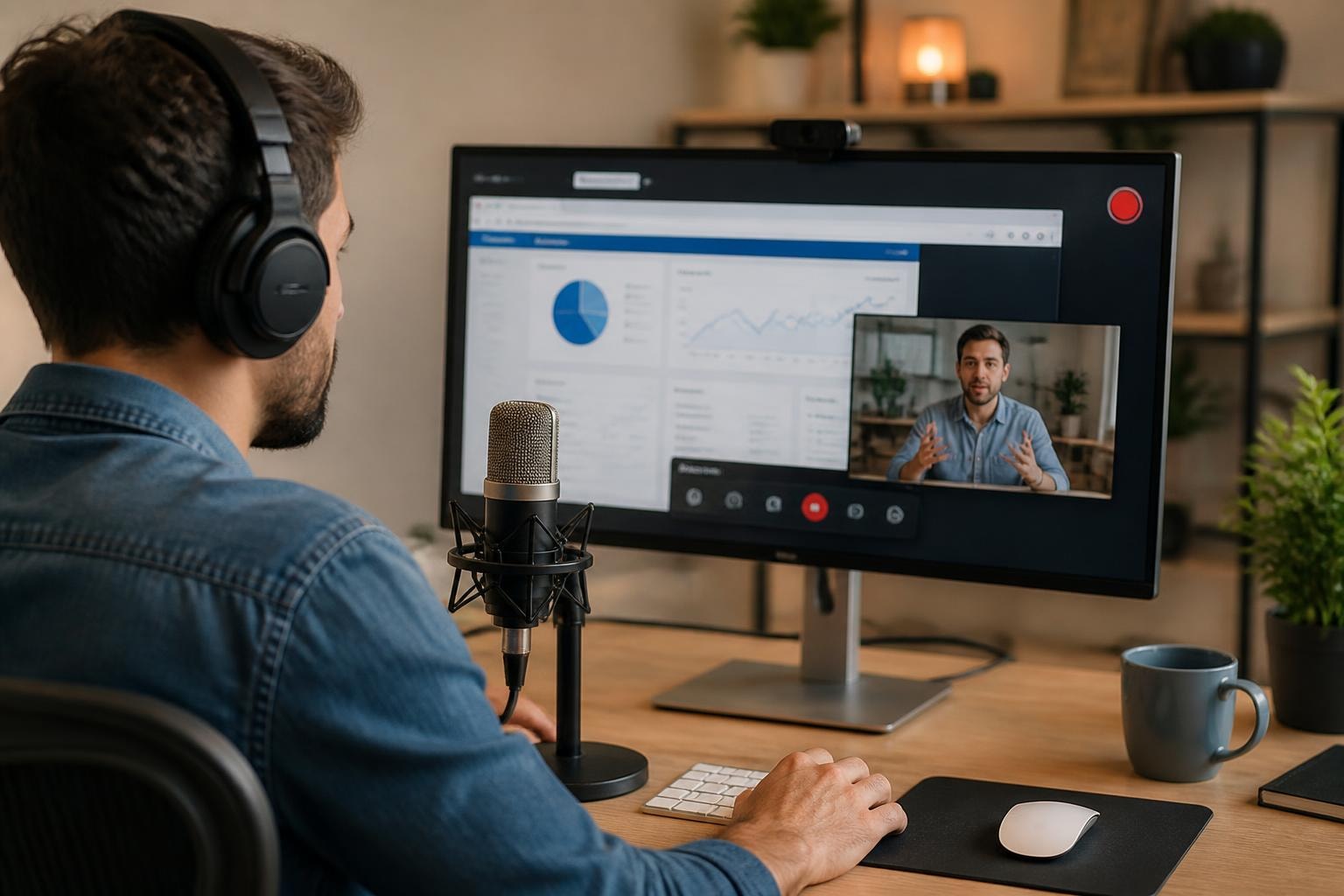
Let's be real-recording your screen with audio shouldn't feel like rocket science. Whether you're creating a tutorial, capturing a bug for your dev team, or saving that important video call, you need a reliable chrome screen recorder with audio that just works. The good news? Chrome has evolved into a powerful platform for screen recording, and in 2026, you've got more options than ever to capture exactly what you need without leaving your browser.
Why Audio Matters in Screen Recordings
Think about the last tutorial video you watched without sound. Frustrating, right?
Audio transforms a simple screen capture into something actually useful. When you're explaining a process, demonstrating software, or walking someone through a complicated workflow, your voice adds context that visual cues alone can't provide. System audio captures everything happening on your screen-notification sounds, video playback, or that crucial error message beep-while microphone audio lets you narrate what viewers should focus on.
Here's what makes audio essential:
- Provides context for complex visual information
- Captures important system sounds and alerts
- Allows for real-time explanation and commentary
- Makes recordings accessible for different learning styles
- Reduces need for follow-up explanations
The challenge isn't whether you need audio-it's finding a chrome screen recorder with audio that captures both your voice and system sounds cleanly, without technical headaches.
Chrome's Built-In Recording Capabilities
Chrome doesn't come with a native full-featured recorder, but it does have some hidden tricks up its sleeve. The browser includes basic tab recording through DevTools, though it's pretty limited compared to dedicated extensions.
What Chrome Can Do Natively
You can access Chrome's experimental screen recording through chrome://flags, but honestly, it's not ready for prime time in 2026. The feature works for basic tab captures but lacks audio input options and advanced controls most people need. For comprehensive guidance on Chrome's built-in options, PCWorld offers detailed instructions worth checking out.
Native Chrome limitations:
- No microphone audio support
- Tab recording only (not full desktop)
- Minimal editing features
- No annotation tools
- Limited sharing options
This is where Chrome extensions shine. They plug directly into your browser and unlock professional-grade recording capabilities without installing separate desktop software.
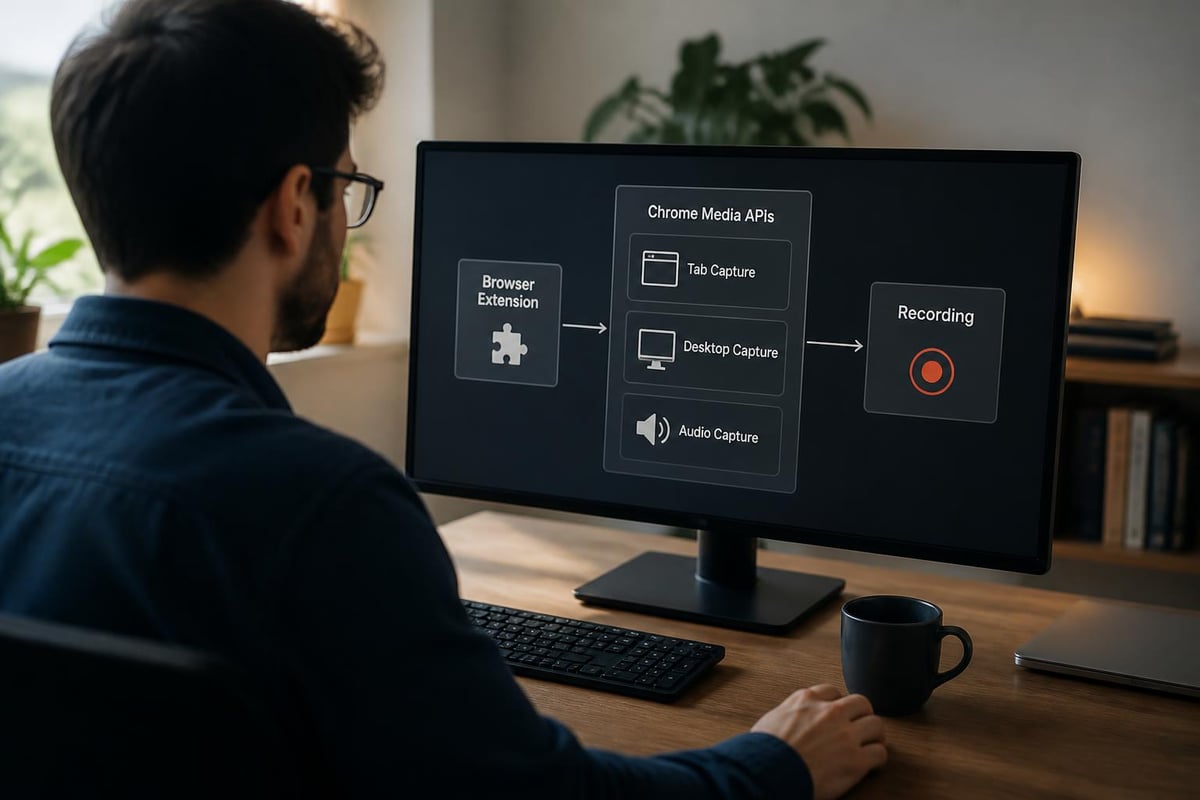
Top Chrome Screen Recorder Extensions in 2026
Let's cut through the noise and look at what actually works. I've tested dozens of extensions, and these stand out for audio recording quality.
Feature Comparison Matrix
| Extension | Audio Sources | Recording Length | Price | Best For |
|---|---|---|---|---|
| Screenity | System + Mic | Unlimited | Free | Open-source enthusiasts |
| Screencastify | System + Mic | 5 min (free) | $49/year | Educators |
| Loom | System + Mic | 5 min (free) | $12.50/month | Team collaboration |
| RecZap | System + Mic | Unlimited | Free tier | Quick captures |
Screenity has become my go-to for most projects. Being open-source means it's completely free with unlimited recording time, which is rare. The audio quality is solid, and you can capture both your microphone and system audio simultaneously-crucial for creating comprehensive tutorials.
Loom excels at instant sharing. Click record, do your thing, and you've got a shareable link in seconds. Perfect for quick team updates or bug reports where you need to show AND tell what's happening.
Choosing the Right Tool
Your needs determine the winner. Recording weekly team updates? Loom's instant sharing saves time. Creating educational content? Screencastify offers great editing tools built right in.
For professional use where you need searchable recordings and advanced sharing features, tools like Mool convert your recordings into searchable knowledge bases using AI, making it easier to find specific moments in long recordings later.
Setting Up Your Chrome Screen Recorder with Audio
Installation takes maybe two minutes. Let's walk through it.
Step-by-Step Installation Process
- Open Chrome Web Store and search for your chosen extension
- Click "Add to Chrome" and confirm the installation
- Grant necessary permissions (screen capture, microphone, system audio)
- Configure audio settings in the extension options
- Test your setup with a quick 10-second recording
The permissions part trips people up sometimes. Chrome needs explicit permission to access your microphone and screen. Don't skip the test recording-you'd be surprised how many people jump into a 30-minute tutorial only to discover their mic wasn't enabled.
Audio Configuration Tips
For microphone recording:
- Select your preferred input device in extension settings
- Test audio levels before important recordings
- Use a quiet environment or noise-canceling mic
- Position mic 6-8 inches from your mouth
For system audio:
- Enable "Share tab audio" in Chrome's permission dialog
- Close unnecessary tabs to reduce background noise
- Adjust system volume to 70-80% for cleaner capture
- Check that the correct audio output is selected
Most chrome screen recorder with audio tools will show a small indicator when audio is being captured. If you don't see it, something's wrong-stop and troubleshoot before wasting time on a silent recording.
Recording Techniques for Professional Results
Having the right tool is half the battle. Using it effectively is where quality happens.
Pre-Recording Checklist
Before you hit that record button, take thirty seconds to set yourself up for success. Close distracting tabs, disable notifications, and prepare your content. Nothing kills a recording faster than notification spam or accidentally showing sensitive information.
- Clean up your desktop and browser tabs
- Disable notifications (OS and browser)
- Prepare talking points or script outline
- Test audio one more time
- Choose correct recording area (tab, window, or full screen)
During Recording Best Practices
Speak clearly and slightly slower than normal conversation. Your future viewers will thank you. Pause between major points-this makes editing way easier if you need to trim sections later.
Audio quality tips:
- Maintain consistent distance from microphone
- Avoid clicking or keyboard sounds during narration
- Pause briefly if you make mistakes (easier to edit)
- Monitor audio levels if your extension shows them
If you're demonstrating software, narrate what you're clicking before you click it. This gives viewers time to process what's happening. A good browser screen recorder setup makes this natural workflow possible without juggling multiple tools.
Troubleshooting Common Audio Issues
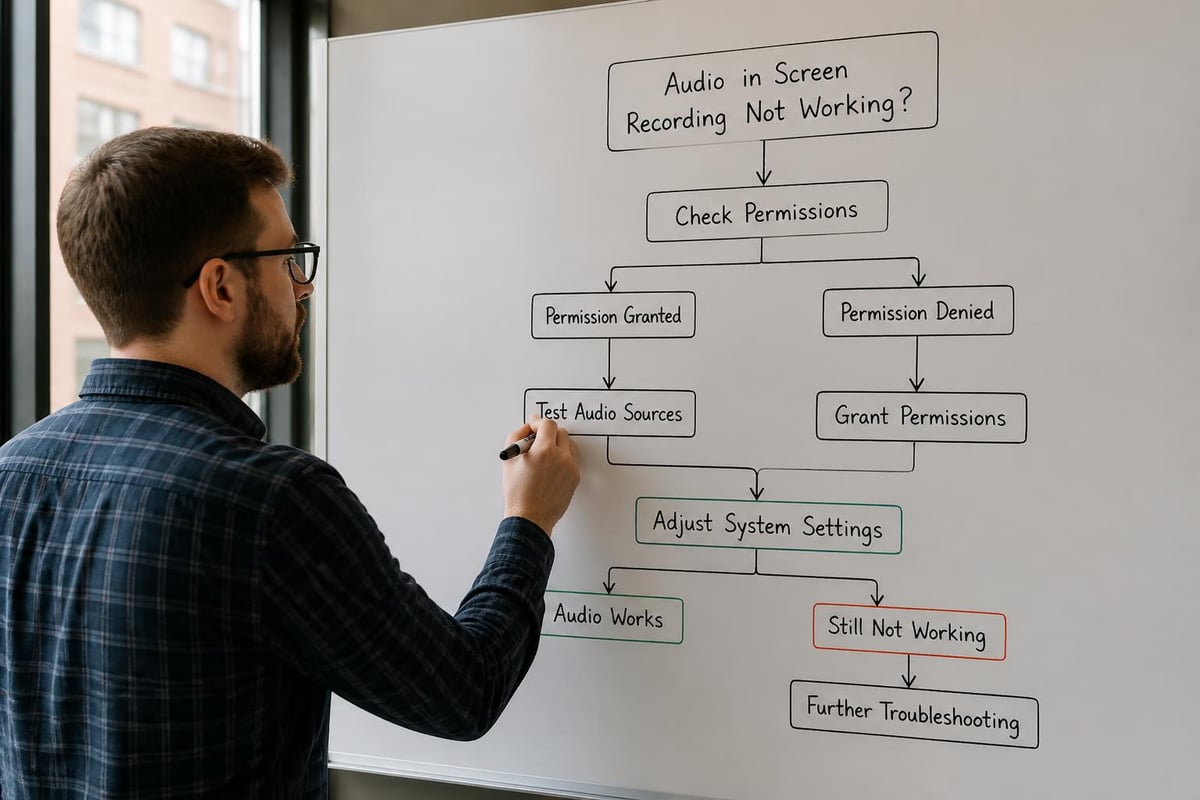
Even the best chrome screen recorder with audio can hiccup. Here's how to fix the most common problems.
No Audio Captured
This is the number one complaint I see. Usually it's a permission issue. Check Chrome's site settings (click the lock icon in the address bar) and verify the extension has microphone access. Also confirm you selected "Share tab audio" when starting the recording.
Quick fixes:
- Restart Chrome completely (not just close the window)
- Check system audio isn't muted
- Verify correct input device selected
- Re-grant extension permissions
- Update extension to latest version
Audio Out of Sync
When your audio drifts from the video, it's usually a performance issue. Chrome is doing a lot of heavy lifting during screen recording. Close memory-heavy tabs and other applications to free up resources.
| Problem | Likely Cause | Solution |
|---|---|---|
| Choppy audio | High CPU usage | Close background apps, reduce recording quality |
| Echo effect | Multiple audio sources | Disable duplicate audio inputs |
| Low volume | Input gain too low | Increase mic/system volume before recording |
| Background noise | Poor mic placement | Use noise suppression or better microphone |
System Audio Not Recording
This one's tricky because it depends on your operating system. On Windows, make sure "Stereo Mix" is enabled. Mac users need to check System Preferences for microphone access. Some extensions like RecZap handle this better than others.
Advanced Audio Features to Explore
Once you've nailed the basics, these advanced features can really elevate your recordings.
Separate Audio Tracks
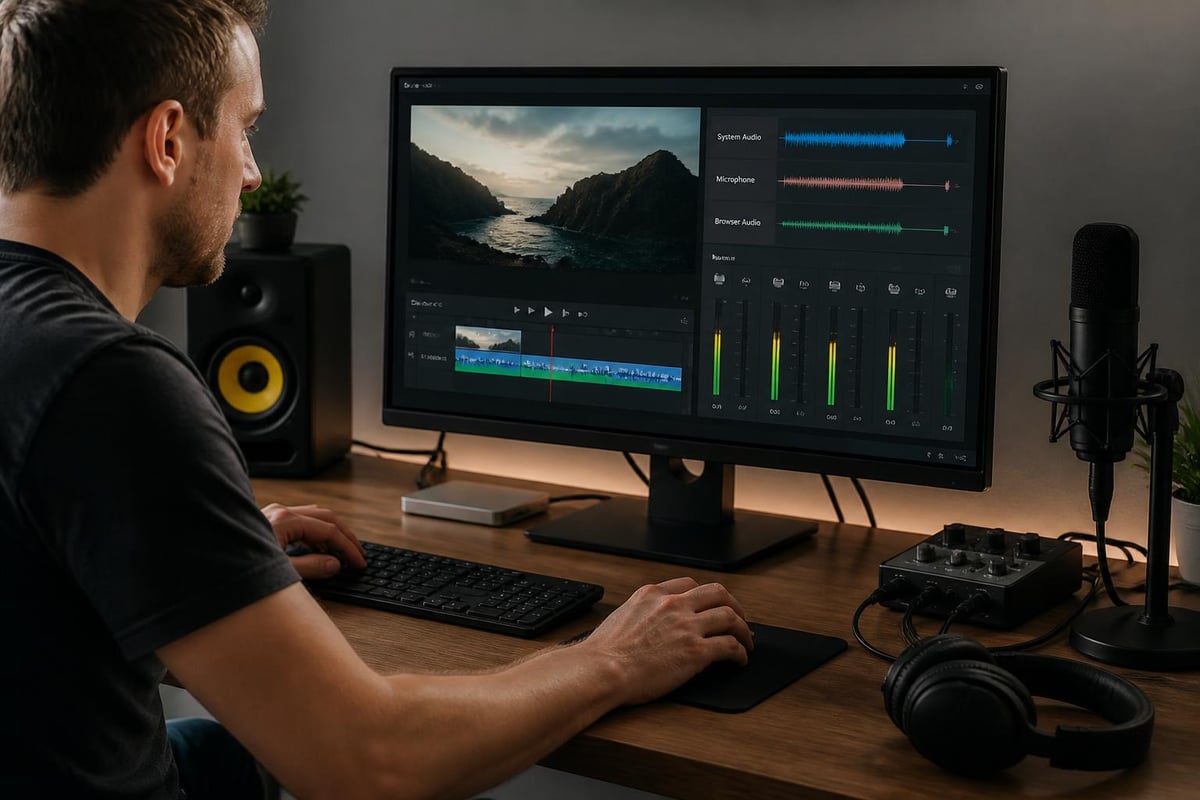
Some professional chrome screen recorder with audio tools let you record system audio and microphone on separate tracks. This is incredible for editing because you can adjust volumes independently or remove your narration entirely if needed.
Benefits of multi-track recording:
- Adjust narration volume without affecting demo audio
- Remove background music while keeping voice
- Add music or sound effects later
- Fix audio issues in post-production
- Create multiple language versions
Noise Suppression and Enhancement
AI-powered noise suppression has gotten really good in 2026. Many extensions now automatically filter out keyboard clicks, background chatter, and ambient room noise. The difference is noticeable-your recordings sound like they were made in a professional studio.
Real-Time Audio Monitoring
Being able to hear yourself while recording prevents a lot of "oh no" moments. Some tools offer real-time monitoring so you can catch audio problems immediately rather than discovering them after a 45-minute recording session.
Using Recordings Effectively
Creating the recording is just step one. What you do with it matters just as much.
Sharing and Collaboration Options
The fastest chrome screen recorder with audio tools generate shareable links instantly. No uploading to YouTube, no email attachments-just copy and paste a link to your team. Look for features like password protection and expiring links if you're sharing sensitive information.
Sharing considerations:
- Link-based sharing vs. file downloads
- Privacy controls and access restrictions
- View tracking and analytics
- Comment and feedback capabilities
- Integration with existing workflows
For more detailed sharing workflows, exploring Mool's features shows how modern screen recording can integrate with team knowledge management.
Organization and Searchability
Here's where things get interesting. Storing dozens or hundreds of recordings becomes chaos without good organization. The ability to search within videos-finding that specific moment where you explained the exact thing your teammate is asking about-saves massive amounts of time.
Creating a systematic naming convention helps too. Include the date, topic, and version number. Trust me, "Screen Recording 2026-05-14 at 3.42 PM" tells you nothing six months later.
Privacy and Security Considerations
Recording your screen means potentially capturing sensitive information. Be smart about it.
What Gets Recorded
Your chrome screen recorder with audio captures everything visible and audible. That includes:
- Browser tabs (potentially with passwords auto-filled)
- Notification pop-ups (emails, messages, alerts)
- System tray icons and taskbar
- Any audio playing through your system
- Background applications if recording full screen
Always review recordings before sharing. I've seen people accidentally leak credentials, private messages, and confidential data because they forgot what was visible on screen.
Extension Permissions and Data
Read what permissions your chosen extension requests. Reputable extensions need screen capture and audio access, but be wary of requests for browsing history, data on all websites, or other invasive permissions that don't make sense for screen recording.
| Security Feature | Why It Matters | What to Look For |
|---|---|---|
| Local recording | Data stays on your device | Offline processing capability |
| Encrypted sharing | Protected links | Password and expiration options |
| Privacy controls | Limited access | User permission management |
| Data retention | How long recordings are stored | Clear retention policies |
Integration with Your Workflow
The best tool is the one you'll actually use consistently. Integration matters.
Browser-Based Advantages
Using a chrome screen recorder with audio instead of desktop software means you're already where you work. No switching applications, no separate launch process-just click the extension icon and go. This reduces friction, which means you'll actually record that quick demo instead of putting it off.
Workflow benefits:
- Quick access from any tab
- No installation on multiple machines
- Works across operating systems
- Easy updates and new features
- Direct integration with web apps
Keyboard Shortcuts and Quick Actions
Set up keyboard shortcuts for starting/stopping recordings. That extra second of clicking through menus adds up, and shortcuts make the process feel seamless. Most extensions let you customize these in Chrome's extension settings.
The ability to trim, annotate, and share without leaving your browser creates an end-to-end workflow that desktop tools can't match. You can understand more about optimizing your recording process through screen recording how-tos that cover various use cases.
Cost Considerations and ROI
Let's talk money. Do you need a paid chrome screen recorder with audio?
Free vs. Paid Features
Free versions typically limit recording length (5-10 minutes), add watermarks, or restrict sharing options. For occasional use, free tiers work fine. If you're recording multiple times weekly or need professional results, paid versions quickly justify themselves.
Common paid upgrades:
- Unlimited recording length
- No watermarks
- Priority support
- Advanced editing tools
- Team collaboration features
- Higher resolution options
- Analytics and tracking
Calculate your time savings. If a better tool saves you 15 minutes per recording and you record twice weekly, that's two hours monthly-worth way more than most subscription costs.
Team and Enterprise Options
Recording as a team introduces different needs. You want shared libraries, consistent branding, and central management. Enterprise plans typically include user management, security certifications, and dedicated support. Check pricing options to understand what scales beyond individual use.
Future of Browser-Based Screen Recording
Where's this technology heading? The trajectory is pretty exciting.
AI-Powered Features
We're already seeing AI transcription, automatic chapter markers, and smart editing suggestions. By the end of 2026, expect AI to automatically generate summaries, extract action items, and even create different edits for different audiences from a single recording.
Enhanced Collaboration
Real-time co-recording, live editing by multiple people, and integrated feedback loops are becoming standard. The line between recording and collaboration is blurring-recordings are becoming living documents rather than static files.
Quality and Performance Improvements
4K recording in-browser used to tank performance. Not anymore. Hardware acceleration and better compression mean you can record high-quality video with minimal impact on system resources. Chrome's continued optimization makes browser-based recording competitive with dedicated software.
Finding the right chrome screen recorder with audio doesn't have to be overwhelming-it's about matching features to your actual needs and workflow. Whether you're creating tutorials, documenting bugs, or saving important meetings, the tools exist right in your browser to capture professional-quality recordings without complicated software. If you're ready to take your screen recordings to the next level with searchable, AI-powered video knowledge management, check out Mool and see how it can transform the way you record, share, and collaborate.