Firefox Screen Capture: Complete Guide for 2026
Taking screenshots is something we all do, whether you're documenting a bug, saving a receipt, or creating tutorials for your team. If you're a Firefox user, you've got some solid options right at your fingertips. The browser's built-in firefox screen capture tools have evolved significantly over the years, and in 2026, they're more capable than ever. Let's dive into everything you need to know about capturing your screen in Firefox, from the basics to advanced techniques that'll make your workflow smoother.
Why Firefox's Built-In Screenshot Tool Rocks
Firefox doesn't make you install a bunch of third-party extensions just to grab a quick screenshot. The browser packs a surprisingly powerful firefox screen capture tool right into the interface, and it's been there since 2017. What makes it special is the balance between simplicity and functionality.
You can capture visible portions of a page, specific regions you select, or even entire pages that extend way beyond what's currently visible on your screen. This last feature is particularly handy when you need to document long articles, product pages, or dashboards without stitching multiple images together.
How Firefox Protects Your Privacy While Capturing
One thing that sets Firefox apart is its commitment to user privacy. When you use the firefox screen capture feature, Firefox's privacy protections remain active. Unlike some screen capture tools that might upload your images to random servers, Firefox keeps everything local by default.
The browser's anti-fingerprinting protections mean websites can't track your screenshot activities or use them to build a profile about you. This is especially important if you're capturing sensitive information like financial data, medical records, or confidential business documents.

Getting Started with Firefox Screen Capture
Actually using the firefox screen capture tool is refreshingly straightforward. There are several ways to access it, so you can pick whichever fits your workflow best.
Three Ways to Access the Screenshot Tool
Method 1: Right-Click Context Menu
- Right-click anywhere on the webpage
- Select "Take Screenshot" from the menu
- Choose your capture area
Method 2: Page Actions Menu
- Click the three-dot menu in the address bar
- Look for "Take Screenshot"
- Start capturing
Method 3: Keyboard Power Users
Press Ctrl+Shift+S (or Cmd+Shift+S on Mac) to instantly open the screenshot interface. Once you've used it a few times, this becomes second nature.
Capture Options Explained
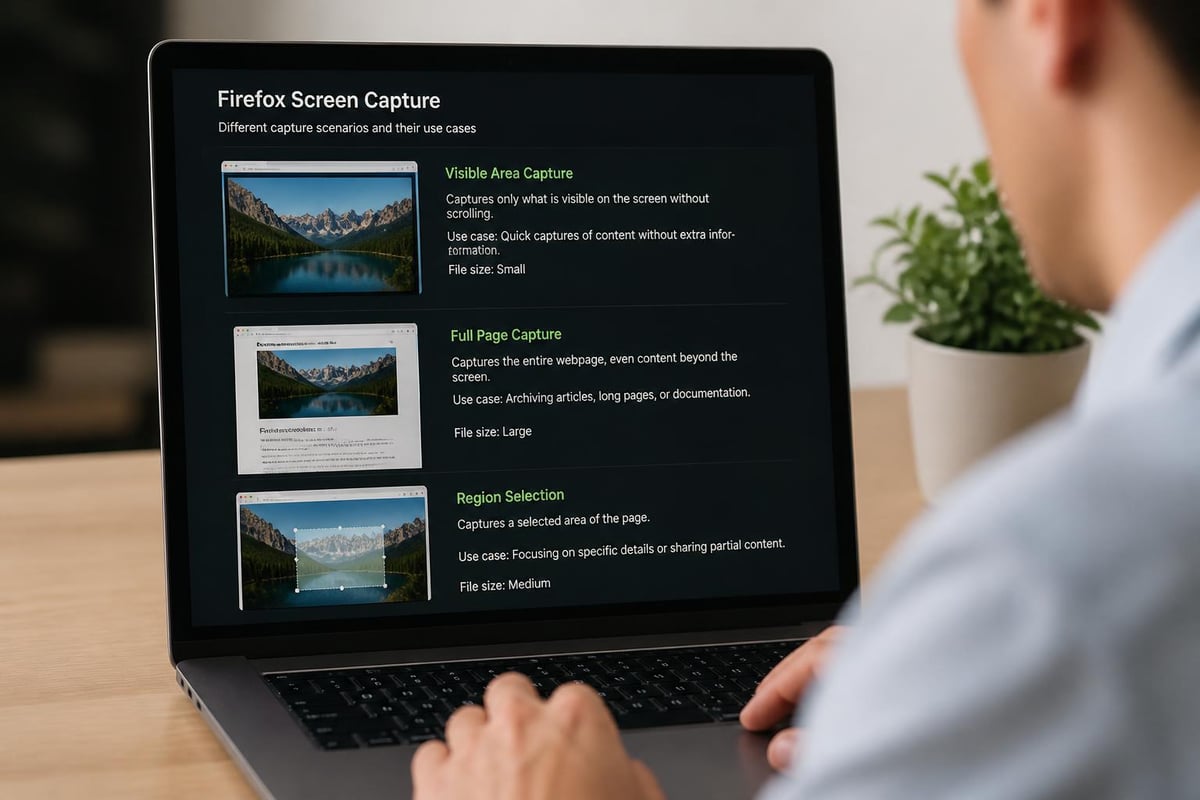
Firefox gives you three main ways to capture content, and knowing when to use each one will save you tons of time.
| Capture Type | Best For | Limitations |
|---|---|---|
| Save Visible | Quick snapshots of current view | Only captures what's on screen |
| Save Full Page | Long articles, complete documentation | Can be huge files for very long pages |
| Select Region | Specific elements, charts, images | Requires manual selection each time |
Full Page Screenshots: The Real MVP
Full page captures are where firefox screen capture really shines. When you click "Save Full Page," Firefox automatically scrolls through the entire document and stitches everything together into one seamless image. This works even on pages with infinite scroll or lazy-loading content, though results can vary depending on how the site is built.
I've used this countless times to save entire product comparison pages, documentation, or email threads without losing any context. It's way better than taking multiple screenshots and trying to remember the order later.
Region Selection for Precision
Sometimes you just need that one chart, that specific error message, or a particular section of text. The region selector lets you click and drag to define exactly what you want to capture. Firefox highlights the area with a blue overlay, and you can adjust the edges before finalizing the capture.
Here's a pro tip: if you're capturing UI elements or specific content areas, Firefox actually snaps to common webpage sections. It can automatically detect headers, sidebars, images, and text blocks, making it easier to grab clean screenshots without accidentally cutting things off.
Advanced Techniques for Power Users
Once you've mastered the basics, there are some lesser-known tricks that can level up your firefox screen capture game.
Capturing Without Extensions
Firefox's built-in capabilities are robust enough that most people don't need additional tools. However, if you're looking for features like instant annotation, automatic uploads, or integration with project management tools, you might want to explore extensions.
The Privacy-Friendly Screen Capture extension adds extra functionality while maintaining Firefox's privacy standards. It's particularly useful if you need to capture screenshots on a schedule or want more control over file formats and compression.
Screenshot Quality and File Formats
Firefox saves screenshots as PNG files by default, which preserves quality but can create larger files. For web documentation or quick shares, this is usually fine. If file size matters (like when you're attaching screenshots to emails or uploading to slow connections), you might want to convert them to JPEG afterward.
The resolution of your firefox screen capture matches your display settings. On high-DPI screens or retina displays, this means your screenshots will be crystal clear but potentially massive. Keep this in mind when sharing with team members who might be on different devices.
Privacy Considerations for Sensitive Content
Here's something people don't think about enough: screenshots can accidentally reveal more than you intend. Your firefox screen capture might include open tabs, bookmarks, browser extensions, or notification popups that contain private information.
What to Check Before Sharing
Before you share any screenshot, take a second to scan for:
- Open tabs showing sensitive sites or personal accounts
- Browser notifications with private messages
- Bookmarks bar with confidential project names
- Extension icons that might reveal tools you use
- System clock showing your timezone
- URL bar contents including search queries or account info
Firefox's private browsing mode can help here. When you take screenshots in a private window, you won't accidentally capture your regular browsing history or logged-in accounts. Just remember that the screenshot itself isn't automatically deleted when you close the private window.
Integration with Your Workflow
The real power of any screenshot tool isn't just capturing images, it's what you do with them afterward. Firefox's approach is intentionally simple: you capture, you save, you're done. But that simplicity can be limiting if you're trying to build documentation, create tutorials, or collaborate with remote teams.
When Basic Screenshots Aren't Enough
Let's be real: static screenshots have limitations. You can't show processes, explain workflows, or capture the exact steps someone needs to follow by freezing a single moment. That's where screen recording for browser workflows becomes essential.
If you find yourself taking multiple screenshots to document a process, or if you're constantly adding arrows and annotations in a separate tool, it might be time to consider a more integrated solution. Tools like Mool extend your browser's capabilities by letting you record, annotate, and share videos directly, with AI-powered search that makes your recordings actually findable later. This is particularly valuable for teams that need to share knowledge, onboard new members, or create reusable training materials.
Organizing Your Screenshot Collection
Here's a workflow tip: create a dedicated folder structure for firefox screen capture files. Most people just dump everything into their Downloads folder and then can't find anything three days later. Instead, try organizing by project, date, or purpose:
Screenshots/
  └── 2026/
      ├── Work_Projects/
      ├── Tutorials/
      ├── Bug_Reports/
      └── Personal/
Use descriptive filenames immediately after capturing. Firefox defaults to names like "Screenshot 2026-05-18 at 14.23.45.png" which tells you when but not what. Rename to something like "homepage-redesign-header-2026-05-18.png" and your future self will thank you.
Troubleshooting Common Issues
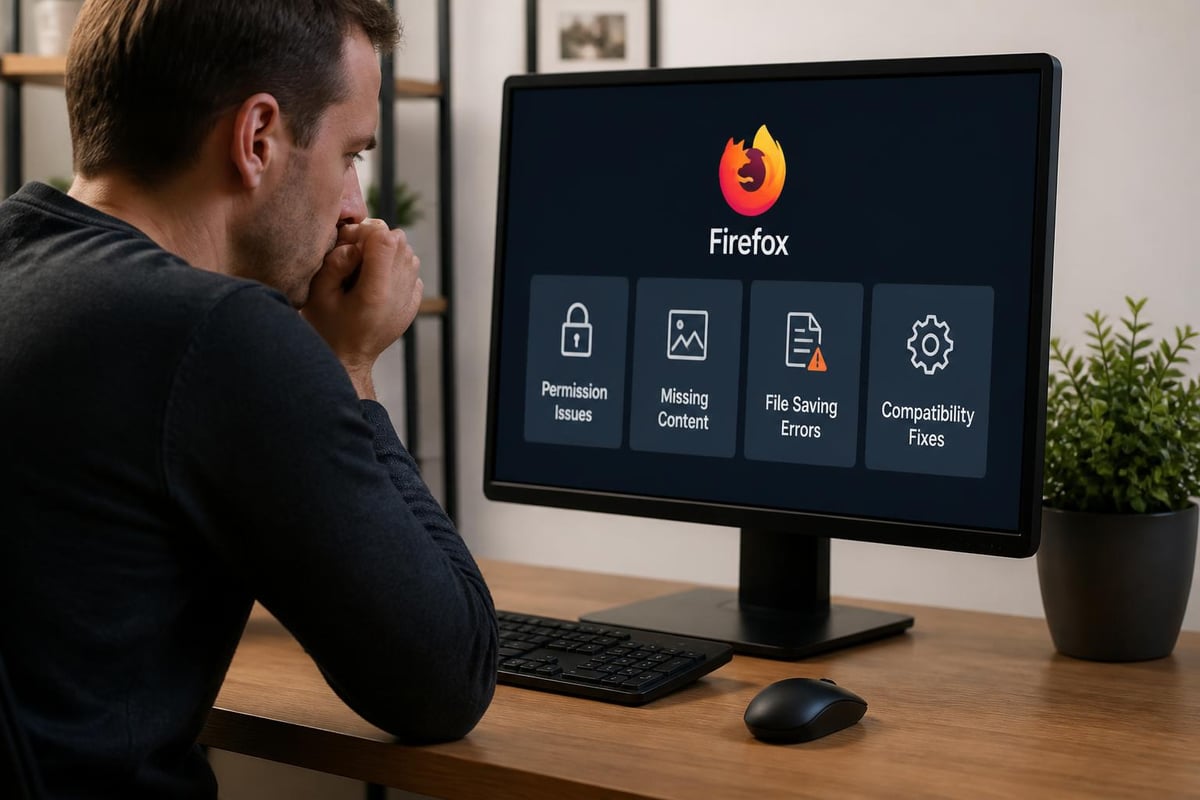
Even though firefox screen capture is pretty reliable, you might run into occasional hiccups. Here are the most common problems and how to fix them.
Screenshots Not Saving
If your screenshots aren't saving, first check your download settings in Firefox preferences. The browser needs permission to save files, and sometimes security software or browser configurations block this.
Quick fixes to try:
- Check
about:preferencesand verify download location - Ensure you have write permissions for the target folder
- Try saving to a different location
- Clear Firefox cache and restart the browser
- Disable conflicting extensions temporarily
Full Page Captures Missing Content
Some websites use complex JavaScript that doesn't play nice with firefox screen capture's full page feature. Dynamic content, infinite scroll implementations, or lazy-loaded images might not appear in your final screenshot.
For sites like this, you have a few options. Try scrolling through the entire page manually first, which can trigger content loading. Alternatively, take multiple "Save Visible" screenshots as you scroll and stitch them together later. Or just accept that sometimes a video recording better captures dynamic content than a static image.
Comparing Firefox to Other Browser Tools
Firefox isn't the only browser with built-in screenshot capabilities, so how does its firefox screen capture stack up against the competition in 2026?
Feature Comparison
| Feature | Firefox | Chrome | Edge | Safari |
|---|---|---|---|---|
| Full Page Capture | Yes | Requires DevTools | Yes | No |
| Region Selection | Yes | Via extensions | Yes | Yes |
| No Extension Needed | Yes | Partial | Yes | Yes |
| Privacy-First Design | Yes | No | Partial | Yes |
| Cloud Integration | No | Yes (Google) | Yes (Microsoft) | Yes (iCloud) |
Firefox's approach prioritizes privacy and simplicity over cloud integration. You won't get automatic uploads to Mozilla's servers because, well, there aren't any Mozilla screenshot servers. This is by design, though it means you'll need to handle sharing and storage yourself.
Best Practices for Professional Use
If you're using firefox screen capture for work, documentation, or professional projects, a few best practices will make your life easier and your screenshots more useful.
Create Consistent Screenshots
Consistency matters when you're building documentation or tutorials. Before taking screenshots:
- Close unnecessary tabs to reduce clutter
- Use the same browser size for all captures in a series
- Clear notifications and popups
- Use consistent zoom levels (usually 100%)
- Consider theme if documenting UI (dark vs light mode)
Capture Context, Not Just Content
A screenshot of an error message is helpful. A screenshot showing the error message, the URL where it happened, and the action that triggered it is way more helpful. Always capture enough context that someone viewing your screenshot later (including future you) can understand what's happening.
This is especially important for bug reports. Include the browser version, visible URL, any console errors, and the steps that led to the issue. Yes, you can type all this information separately, but a well-composed firefox screen capture can communicate everything at once.
Privacy and Security Deep Dive
Given recent concerns about browser tracking and data collection, it's worth understanding exactly what happens to your data when you use firefox screen capture.
What Firefox Knows About Your Screenshots
Absolutely nothing. The screenshot feature operates entirely locally. Firefox doesn't track what you capture, when you capture it, or what you do with the files afterward. There's no telemetry, no analytics, no "improving our services" data collection.
This is different from some competing tools that analyze your screenshots for "smart features" or upload them to cloud services for syncing. Mozilla's commitment to user privacy extends to every feature they build, including screenshots.
Metadata Considerations
Screenshots do contain metadata, though. The PNG files created by firefox screen capture include creation timestamp, file size, and image dimensions. They don't include GPS location, camera information, or other EXIF data you might find in photos, but they're not completely anonymous either.
If you're sharing screenshots that need to be truly anonymous, consider stripping metadata using a tool like ExifTool or converting to a different format and back. This is probably overkill for most use cases, but it's good to know what information your files contain.
Making Screenshots More Useful
A screenshot sitting on your hard drive isn't doing much good. The real value comes from what you do with it. Here are some ways to make your firefox screen capture efforts more productive.
Annotation and Markup
Firefox's screenshot tool is capture-only. No built-in annotation, no arrows, no text boxes. You'll need a separate tool for that. Free options include:
- Windows Snipping Tool (Windows 10/11 built-in)
- Preview (Mac built-in with markup tools)
- GIMP (free, cross-platform image editor)
- ShareX (Windows, free and powerful)
Alternatively, if you're regularly creating annotated screenshots for documentation or training, it might be worth exploring tools that combine capture and annotation in one step. This saves the extra step of opening each screenshot in a separate program.
Sharing and Collaboration
Email attachments work fine for one-off screenshots, but they're terrible for ongoing collaboration. Files get lost in threads, versions get confused, and searching for "that screenshot from two weeks ago" becomes impossible.
Better approaches include:
- Project-specific folders in cloud storage (Dropbox, Google Drive, OneDrive)
- Documentation platforms where screenshots live with their context
- Issue trackers that keep screenshots attached to relevant bugs or features
- Wiki systems that make screenshots searchable and accessible
If you're frequently sharing screen recordings and captures, dedicated tools designed for video and screenshot sharing can dramatically improve your team's efficiency.
Browser Extensions for Enhanced Functionality
While Firefox's native firefox screen capture tool handles most needs, extensions can add specialized features for specific workflows.
When to Consider Extensions
Extensions make sense if you need:
- Automatic uploads to specific services
- Cloud integration with tools you already use
- Advanced annotation built into the capture workflow
- Scheduled captures for monitoring
- Format conversion on the fly
- Automatic naming based on page titles or URLs
Just remember that extensions can affect browser performance and potentially compromise privacy. Stick with well-reviewed extensions from trusted developers, and only install what you actually need.
Keyboard Shortcuts for Speed
Once you're comfortable with firefox screen capture, keyboard shortcuts become your best friend. Here's the essential one to memorize:
Ctrl+Shift+S (Windows/Linux) or Cmd+Shift+S (Mac) opens the screenshot interface instantly.
From there, you can use your mouse to select the capture type, or if you're truly dedicated to keyboard efficiency, use Tab to navigate between options and Enter to select. It's not the fastest workflow in the world, but it beats clicking through menus every time.
Future of Firefox Screen Capture
Mozilla continues to update Firefox regularly, and the screenshot tool gets occasional improvements. In 2026, the focus has been on performance optimizations and better handling of complex web pages with modern JavaScript frameworks.
What's likely coming next? Based on Mozilla's development patterns, expect better integration with Firefox's sync features (while maintaining privacy), improved handling of scrolling captures on difficult sites, and possibly built-in basic annotation tools.
The browser's commitment to tracking protection and privacy features will likely influence how screenshot features evolve. Don't expect cloud integration or AI analysis features common in other browsers. Firefox will keep doing what it does best: giving you powerful tools that work locally and respect your privacy.
Performance and Resource Usage
Taking screenshots is generally a lightweight operation, but full page captures on extremely long pages can temporarily spike CPU and memory usage. Firefox needs to render the entire page, even portions that aren't currently visible, and then stitch everything into a single image.
On modern hardware, this is rarely noticeable. On older systems or when capturing massive pages, you might see Firefox become briefly unresponsive. The browser will recover once the capture completes, but it's something to be aware of if you're working on resource-constrained machines.
Firefox's built-in screenshot capabilities offer a solid, privacy-respecting way to capture web content without installing third-party tools. Whether you need quick snapshots or full-page documentation, the firefox screen capture feature handles most common scenarios with ease. For teams that need more advanced features like video recording, annotation, and searchable knowledge bases, Mool builds on browser-based capture with AI-powered organization and sharing that makes your screen recordings actually useful long after you've created them.