Free Screen Capture Tools Worth Using in 2026
Let's be honest - you probably need to capture your screen more often than you think. Whether you're creating a quick tutorial for a colleague, reporting a bug to tech support, or documenting a process for future reference, having reliable free screen capture tools at your fingertips makes life so much easier. The good news? You don't need to drop hundreds of dollars on premium software to get quality recordings. There are plenty of excellent free options that'll do the job beautifully, and I'm going to walk you through the best ones available in 2026.
What Makes a Screen Capture Tool Actually Useful
Before we dive into specific tools, let's talk about what actually matters when you're choosing software. Not all free screen capture tools are created equal, and some "free" options come with strings attached that'll drive you crazy.
The non-negotiables you should look for:
- No watermarks plastered across your videos
- Reasonable recording time limits (or none at all)
- Decent video quality options
- Simple sharing capabilities
- Intuitive interface that doesn't require a PhD to operate
The Hidden Costs of "Free" Software
Here's something most articles won't tell you upfront - many free tools have sneaky limitations. Some cap your recordings at 5 minutes, others slap giant watermarks across the bottom, and a few will nag you constantly to upgrade. When I'm evaluating options, I always test them with real-world scenarios to see where the friction points actually are.
The best free screen capture tools give you genuine value without constantly pushing premium upgrades in your face. That said, understanding what you're getting (and what you're giving up) helps set realistic expectations.

Built-In Options You Already Have
Most people don't realize they're already sitting on perfectly capable screen capture tools. Your operating system probably came with something useful installed.
Windows Users: The Snipping Tool Evolution
Microsoft's Snipping Tool has gotten seriously good in recent Windows versions. What started as a basic screenshot utility now handles video recording too. If you're on Windows 11, you've got access to screen recording features built right in.
The Xbox Game Bar is another native option that's surprisingly versatile. Press Win + G, and you've got a recording interface ready to go. It was designed for gamers, but it works perfectly for recording anything on your screen.
| Built-In Tool | Platform | Best For | Limitations |
|---|---|---|---|
| Snipping Tool | Windows 10/11 | Quick screenshots and short recordings | Limited editing features |
| Xbox Game Bar | Windows 10/11 | Application-specific recordings | Can't record desktop or File Explorer |
| QuickTime Player | macOS | Simple, clean recordings | Mac only, basic features |
| Screenshot Toolbar | macOS | Screenshots with markup | No video recording in toolbar |
Mac's Native Solutions
Mac users have QuickTime Player sitting in their Applications folder, and it's shockingly capable. File > New Screen Recording gives you a straightforward recording interface without installing anything extra. The quality's solid, and it integrates beautifully with the Apple ecosystem.
For screenshots specifically, the Command + Shift + 5 toolbar gives you tons of options with built-in annotation tools. If you want more advanced features, TechRadar's guide to Mac screenshot tools covers some excellent alternatives.
Standalone Free Tools That Actually Deliver
Now let's get into the dedicated free screen capture tools that go beyond what's built into your OS. These options bring more features to the table while keeping your wallet happy.
OBS Studio: The Powerhouse Option
OBS Studio tops most "best free tools" lists for good reason. This open-source software gives you professional-grade recording capabilities without costing a penny. The learning curve's a bit steeper than other options, but once you've got it configured, it's incredibly powerful.
What makes OBS Studio stand out:
- Unlimited recording time with zero watermarks
- Multiple scene compositions for complex recordings
- Streaming capabilities built in
- Extensive plugin ecosystem
- Active community support
The downside? It's definitely overkill if you just need to quickly show someone how to reset their password. But for regular content creators or anyone doing detailed demonstrations, it's hard to beat.
ShareX: Windows Users' Secret Weapon
ShareX flies under the radar compared to bigger names, but it's one of the most feature-rich free options available. This Windows-exclusive tool combines screenshots, screen recording, and file sharing into one package.
What I love about ShareX is its workflow automation. You can set it up to automatically upload recordings to your preferred cloud storage, copy links to your clipboard, and even apply watermarks or annotations automatically. It's the kind of tool that saves you minutes every time you use it - and those minutes add up fast.
Browser-Based Recording Solutions
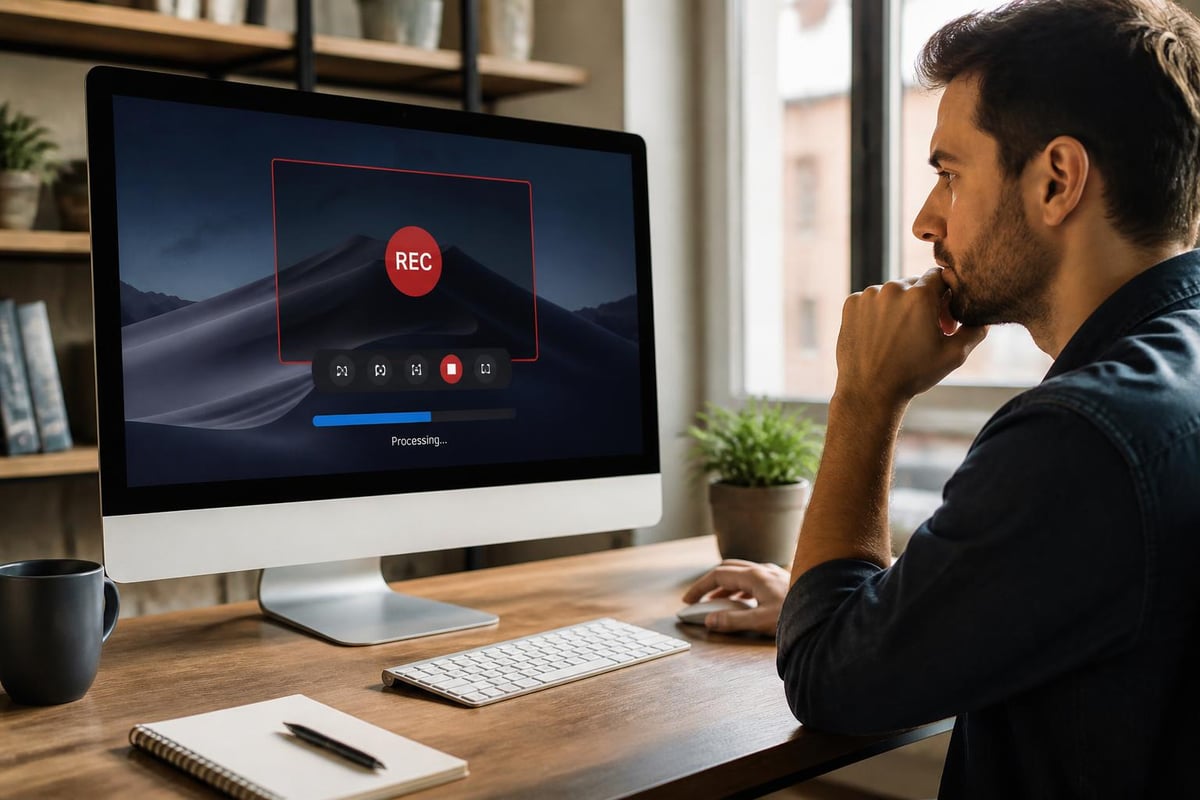
Sometimes you need to record something quickly without launching separate software. That's where browser extensions shine. Tools like Mool work directly from Chrome, letting you capture, share, and review videos without leaving your browser.
Browser-based options are particularly handy when you're already working in your browser (which, let's face it, is most of the time). They typically offer instant sharing features and cloud storage, making collaboration dead simple. The trade-off is you're usually more limited in advanced editing features compared to desktop applications.
Specialty Tools for Specific Needs
Different recording situations call for different tools. Let's break down some free screen capture tools optimized for particular use cases.
For Quick Bug Reports: Loom's Free Tier
Loom revolutionized async communication, and their free tier remains generous. You get up to 25 videos in your library (older ones get deleted unless you upgrade), each up to 5 minutes long. For quick bug reports or short explanations, that's plenty.
The real magic is Loom's sharing experience. Send someone a link, and they can watch, comment with timestamps, and even add emoji reactions. It's built for collaboration from the ground up.
For Tutorials: Screencast-O-Matic (Now ScreenPal)
ScreenPal (formerly Screencast-O-Matic) balances features and accessibility nicely. The free version gives you up to 15 minutes per recording with basic editing tools included. That's enough to create substantial tutorial content without hitting upgrade walls immediately.
Recording workflow steps:
- Launch the tool and select your recording area
- Choose whether to include webcam, microphone, or both
- Hit record and capture your content
- Use built-in trimming to clean up the beginning and end
- Export directly or upload to their hosting platform
The free tier does add a watermark, which is the main downside. But if you're recording primarily for internal use or personal projects, it's not a dealbreaker.
For Gaming Content: Medal.tv
While technically focused on gaming, Medal.tv works for any screen recording scenario. It's completely free with no watermarks, no time limits, and automatic cloud backup. The catch? It's designed around their social platform, so sharing outside their ecosystem takes extra steps.
If you're comfortable with that workflow, you're getting genuinely unlimited recording capabilities for free. According to this comprehensive comparison of free screen recording tools, Medal.tv stands out for its zero-restriction approach.
Mobile Screen Recording Options
Your phone's screen needs capturing too, and thankfully both iOS and Android have solid built-in options. Let's explore what's available without downloading third-party apps.
iOS Screen Recording
Apple built screen recording directly into iOS, accessible through Control Center. Once you've added it to your Control Center shortcuts, recording is literally one tap away. The recordings save directly to your Photos app in high quality.
For sharing, you can trim the video right in Photos and send it through any messaging app or cloud service. It's straightforward and works every time. If you want to learn more about browser-based recording options that complement your mobile workflow, those can be handy too.
Android's Native Recorder
Android 11 and newer include a screen recorder in the Quick Settings panel. Quality's good, you can choose whether to record audio, and there's even an option to show screen touches - super helpful for tutorials.
Third-party options like AZ Screen Recorder or XRecorder add more bells and whistles, but honestly, the native option handles most needs perfectly well.
Advanced Features Worth Considering
Once you've got the basics down, some advanced capabilities can significantly improve your screen capture workflow. Not all free screen capture tools offer these, but they're worth seeking out if they match your needs.
Annotation and Drawing Tools
Being able to highlight areas, draw arrows, or add text during recording makes your captures way more useful. Instead of saying "click that thing in the upper right," you can literally circle it and make your instructions crystal clear.
Some tools let you annotate during recording, while others offer post-recording editing. Live annotation feels more natural but requires practice to not make your videos look messy.
Auto-Transcription and Searchability
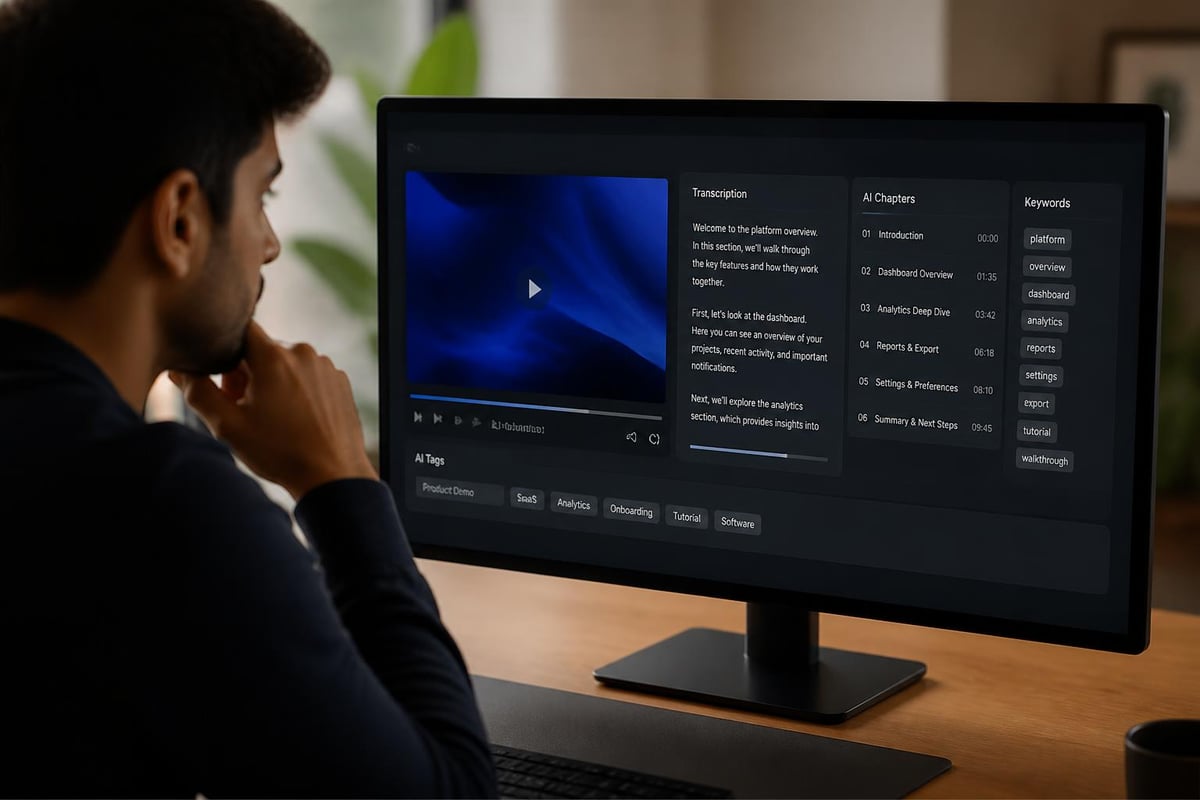
This is where things get interesting in 2026. Newer tools are incorporating AI to automatically transcribe your recordings and make them searchable. Imagine being able to search through dozens of training videos to find the exact moment someone explains a specific feature.
Benefits of searchable screen recordings:
- Find specific information across your entire video library
- Create automatic indexes and timestamps
- Generate captions for accessibility
- Extract action items and key points
These features were premium-only for years, but they're starting to trickle into free tiers as AI costs decrease.
Choosing the Right Tool for Your Situation
With so many options, picking the right one comes down to your specific needs. Here's how I think about it when helping someone choose.
For Occasional Personal Use
If you're recording once or twice a month for personal projects, stick with built-in options or something super simple like Loom's free tier. You don't need complicated features you'll never use. Windows 10's built-in screen capture options work perfectly for this use case.
For Regular Team Communication
When you're creating content for colleagues regularly, prioritize easy sharing and decent recording limits. Browser extensions work great here because they integrate with your existing workflows. The ability to quickly generate shareable links matters more than advanced editing features.
For Content Creation
If you're making tutorials, courses, or YouTube videos, invest time learning OBS Studio or similar powerful tools. The upfront learning curve pays dividends when you're creating content regularly. You'll want unlimited recording time, good quality settings, and flexible editing options.
| Use Case | Recommended Tool Type | Key Features to Prioritize |
|---|---|---|
| Quick bug reports | Browser extension or mobile | Instant sharing, annotation |
| Training videos | Desktop software | Longer time limits, editing |
| Live streaming | OBS or StreamLabs | Scene management, streaming integration |
| Screen + webcam combo | Loom or ScreenPal | Picture-in-picture, easy editing |
| Professional content | OBS Studio | Quality settings, plugins, unlimited recording |
Common Pitfalls to Avoid
Even with great free screen capture tools, there are some mistakes that'll waste your time or produce unusable recordings. Let me save you from learning these the hard way.
Testing your setup before important recordings is absolutely critical. Nothing's worse than finishing a 20-minute tutorial only to discover your microphone wasn't actually recording. Do a 30-second test recording and check both video and audio before starting the real thing.
File size management sneaks up on people. Screen recordings eat storage fast, especially at high quality settings. If you're using local storage, set up a system for regularly moving or deleting old recordings. Cloud-based tools like those mentioned in this comparison of free screen recording software handle this automatically but have their own storage limits.
Forgetting about notifications during recording is embarrassing and unprofessional. Turn on Do Not Disturb mode before you hit record. Nothing kills a tutorial's credibility like personal notifications popping up mid-demonstration.
Privacy Considerations
Screen recordings can accidentally capture sensitive information. Before sharing any recording, scrub through it quickly to verify you haven't shown passwords, personal emails, confidential documents, or private messages.
Some tools offer privacy features like automatically blurring certain windows or pausing recording when you switch to specific apps. These are worth enabling if you're recording in an environment where sensitive data might appear.
Making the Most of Limited Features
Free tiers have limitations - that's just reality. But with smart workflows, you can accomplish a lot within those constraints. Here are strategies I use to maximize free screen capture tools.
Recording in Segments
If you're hitting time limits, break longer content into logical segments. This actually improves the final product anyway because viewers can navigate to specific sections. Five 10-minute videos are often more useful than one 50-minute marathon.
Using Cloud Storage Creatively
Many free tools limit how many videos you can store in their system. Work around this by immediately downloading important recordings and storing them in your own Google Drive, Dropbox, or OneDrive. You keep unlimited recordings while staying within the tool's limits.
Combining Tools for Complete Workflows
No single free tool does everything perfectly. I often use one tool for recording, another for editing, and yet another for hosting and sharing. It's slightly more complex, but you get best-in-class features at each step without paying for premium tiers.
According to ToolRadar's comprehensive guide to free screen recording, this mixed approach is increasingly common as specialized tools excel in their specific niches.
Quality Settings That Matter
Not all recordings need to be 4K masterpieces. Understanding when to prioritize quality versus file size makes your life easier and your workflows faster.
When to Use Lower Quality Settings
Internal team communications, quick bug reports, and draft versions don't need maximum quality. Recording at 720p instead of 1080p cuts file sizes by more than half, uploads faster, and plays smoothly on any connection. Your colleague troubleshooting that login issue doesn't care if they can count your pixels.
When Quality Actually Matters
Client presentations, published tutorials, and anything going on YouTube deserves higher quality settings. First impressions matter, and blurry, choppy video undermines your credibility even if your content is excellent.
Quality versus file size comparison:
- 4K (2160p): Massive files, overkill for most uses, slow uploads
- 1080p: Sweet spot for professional content, reasonable file sizes
- 720p: Perfect for internal use, quick sharing, mobile viewing
- 480p or lower: Only for extremely constrained bandwidth situations
Frame rate matters too. Thirty frames per second handles most content beautifully. You only need 60fps if you're capturing fast-moving content like gaming or detailed animations.
Sharing and Collaboration Features
Creating the recording is only half the battle. Getting it to the right people in a useful format completes the workflow. Different free screen capture tools approach sharing very differently.
Direct Link Sharing
The fastest option is tools that generate shareable links immediately after recording. No uploading to separate platforms, no email attachments bouncing back because they're too large. Just copy a link and paste it wherever you need it. For quick collaboration, check out Mool's sharing capabilities to see how streamlined this can be.
Integration With Other Platforms
Some tools plug directly into Slack, Teams, or project management software. These integrations save time if you're regularly sharing recordings in those contexts. Instead of download-then-upload workflows, the video goes straight to your team's communication hub.
Privacy and Access Controls
Free tiers usually offer basic privacy options like password protection or unlisted links. That's sufficient for most business use cases. You probably don't need enterprise-level permission management unless you're dealing with truly sensitive content.
The Evolution of Free Screen Capture Tools
The landscape's changed dramatically over the past few years. Features that required expensive software licenses in 2020 are now available in free tools. This trend accelerates as competition intensifies and AI reduces development costs.
What's driving this evolution? Cloud computing made hosting and sharing cheaper. Open-source projects like OBS raised the baseline for what "free" should include. And AI automation reduced the engineering effort needed to build sophisticated features.
Reviews from sites like TechRadar consistently note that free screen capture tools in 2026 rival what premium options offered just a few years ago. That's great news for users but makes choosing harder because there are genuinely excellent options everywhere you look.
Final Thoughts on Free Tools
The reality is that most people don't need premium screen recording software. Free screen capture tools have matured to the point where they handle 90% of use cases beautifully. Whether you're creating training materials, reporting bugs, or documenting processes, there's a free option that'll serve you well.
The key is matching the tool to your actual needs rather than grabbing the one with the most features. Simple tools that you'll actually use beat powerful ones that intimidate you into avoiding screen recording altogether. Start with something straightforward, learn what you need, then explore more advanced options if those basic tools don't cut it.
Finding the right free screen capture tools transforms how you communicate and document your work. Start with built-in options to understand your needs, then explore dedicated tools as those requirements become clearer. If you're looking for a solution that combines easy recording with powerful AI-driven searchability and seamless sharing right from your browser, Mool might be exactly what you need. It's designed specifically for teams who want to turn their screen recordings into searchable, actionable knowledge without the usual hassle.