Video Screen Capture: Your Guide to Recording Like a Pro
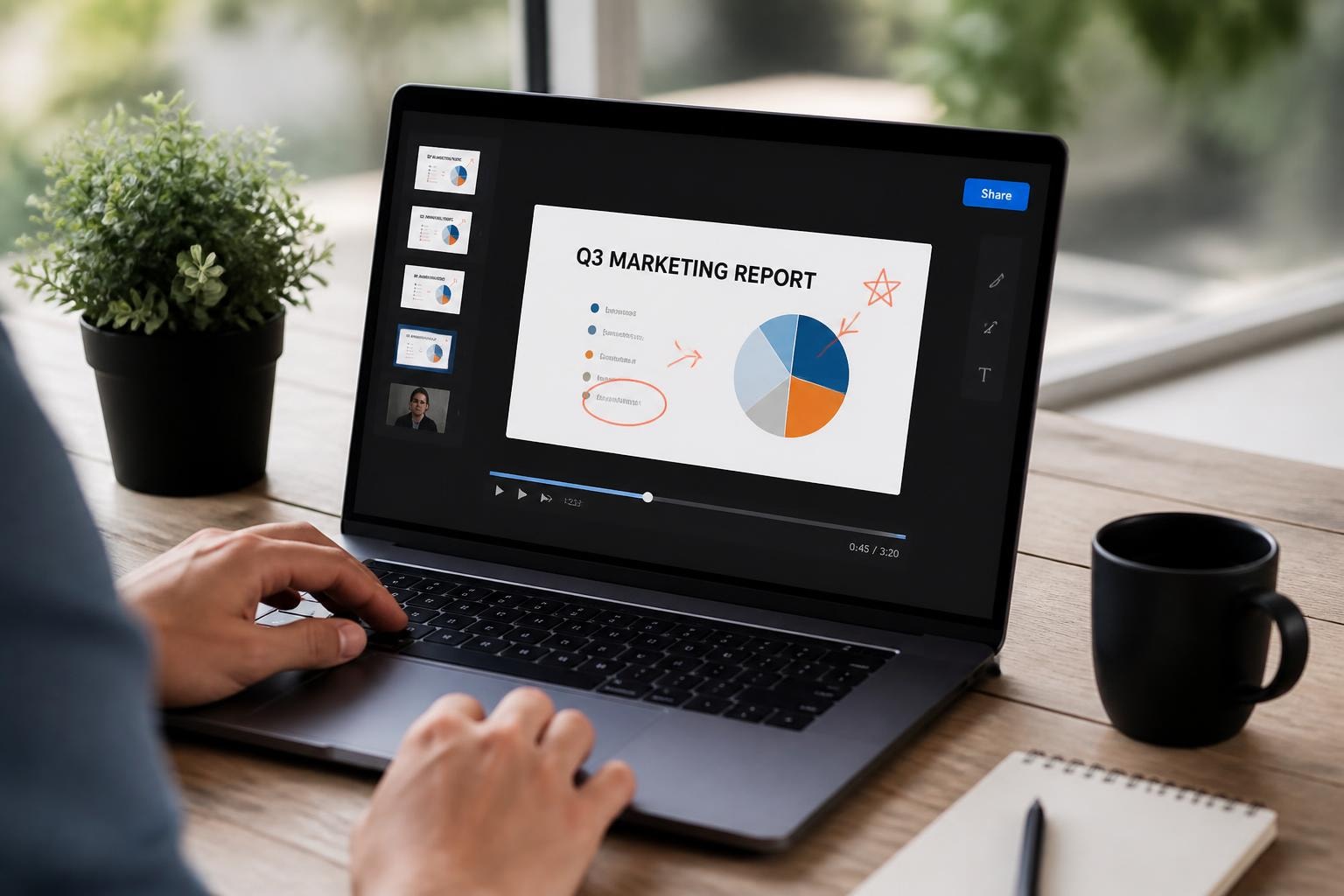
You know that moment when you're trying to explain something on your computer to a colleague, and you wish they could just see what you're seeing? That's where video screen capture comes in. Whether you're creating training materials, documenting bugs, or building a course, capturing what's happening on your screen has become one of the most valuable skills in 2026. Let's dive into everything you need to know about recording your screen like a pro.
What Is Video Screen Capture and Why Should You Care?
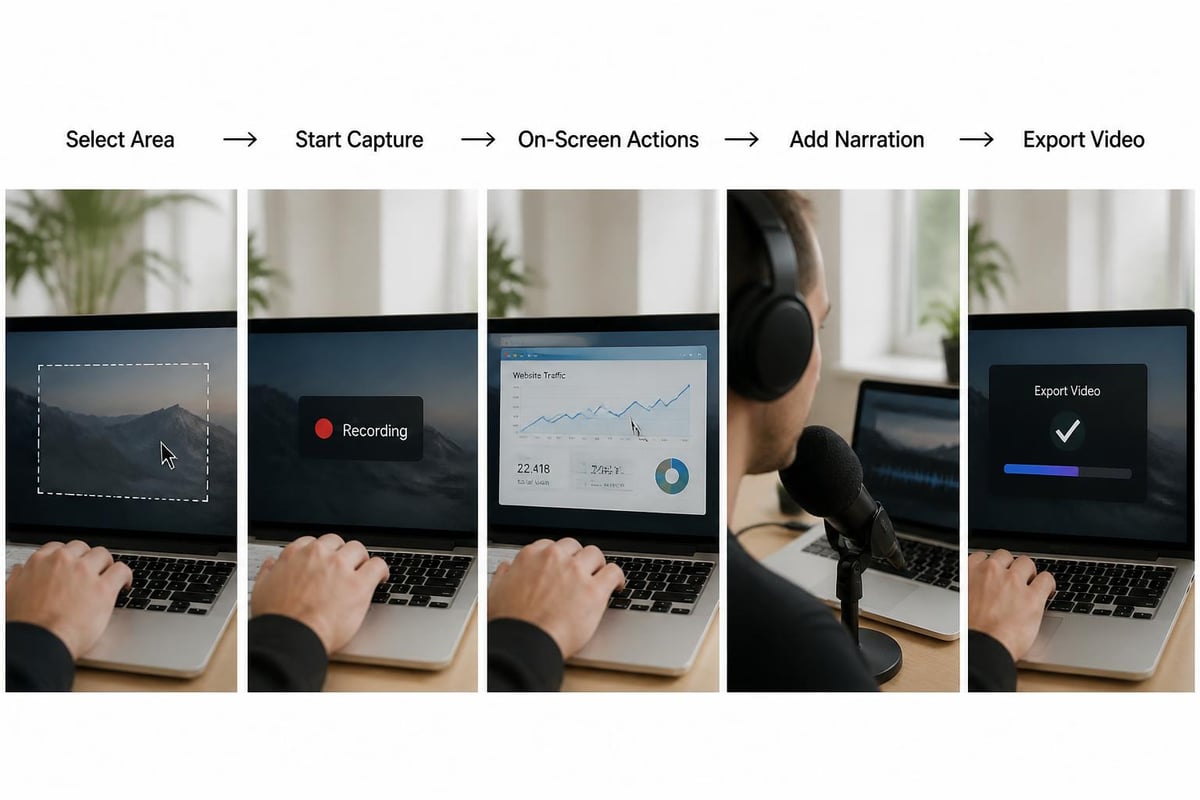
Video screen capture is the process of recording everything that happens on your computer or mobile device screen, often with audio narration included. Think of it as taking a video of your digital workspace instead of just a screenshot.
The applications are pretty much endless. Teachers use it to create asynchronous lessons. Customer support teams build help libraries. Developers document bugs that only appear under specific conditions. Content creators capture gameplay or software tutorials.
What makes video screen capture different from regular video recording? You're not filming with a camera - you're digitally capturing pixel-by-pixel what appears on your display. This means crystal-clear quality without worrying about lighting, camera angles, or shaky footage.
The Evolution of Screen Recording Technology
We've come a long way from the clunky screen recorders of the early 2000s. Modern tools now incorporate AI, cloud storage, and real-time collaboration features. According to best practices for screen recording, today's solutions focus on ease of use and instant sharing capabilities.
The shift toward browser-based recording has been huge. Instead of downloading heavy desktop software, you can now capture your screen directly from Chrome or Firefox. This approach makes screen recording more accessible for teams who need quick, lightweight solutions.
Choosing the Right Video Screen Capture Tool
Not all screen recorders are created equal. Here's what you should look for:
Essential Features:
- High-quality video output (at least 1080p in 2026)
- Audio recording options (system sound, microphone, or both)
- Flexible capture areas (full screen, specific window, or custom region)
- Annotation tools for highlighting important elements
- Easy sharing capabilities without massive file sizes
Nice-to-Have Features:
- Webcam overlay for adding a personal touch
- Editing tools built right in
- Cloud storage integration
- Password protection for sensitive content
- Transcription and searchability
When evaluating options, the best free screen recorder tools often provide enough functionality for most users. However, professional use cases might require paid features.
| Feature Type | Free Tools | Professional Tools |
|---|---|---|
| Recording Quality | Up to 1080p | 4K and higher |
| Time Limits | Often 5-15 minutes | Unlimited |
| Editing | Basic trim | Full suite |
| Storage | Local only | Cloud + Local |
| Collaboration | Limited | Advanced sharing |
Setting Up for Success: Pre-Recording Preparation
You wouldn't start a presentation without preparing your slides, right? Same goes for video screen capture. A little prep work makes a massive difference in the final product.
Clean Up Your Digital Workspace
Close those 47 browser tabs you've been meaning to read. Turn off desktop notifications. Nothing kills professionalism faster than a Slack message popping up mid-recording. Set your status to "Do Not Disturb" across all apps.
Your desktop background matters too. Keep it simple and professional, especially if you're creating content for work. Those vacation photos can wait.
Audio Quality Matters More Than You Think
Here's the truth: people will forgive mediocre video quality, but they'll click away from bad audio in seconds. Invest in a decent microphone or at least find a quiet space. Close windows, turn off fans, and let your family or roommates know you're recording.
Test your audio levels before the real take. You want your voice clear and prominent without peaking into distortion. Most webcam recording best practices apply to screen recording too - consistent audio is key.
Script or Outline Your Content
Even if you're just capturing a quick bug report, knowing what you'll say and do prevents those awkward "um" moments. Write down key points or create a simple outline.
For longer tutorials, script the introduction and conclusion. The middle can be more flexible, but having anchors keeps you on track.
Recording Techniques That Keep Viewers Engaged
Now we're getting to the good stuff. You've got your tool, your workspace is clean, and you know what you're going to say. Time to hit record.
Movement and Pacing:
- Slow down your cursor movements - what feels slow to you looks normal on playback
- Pause between actions to let viewers process what happened
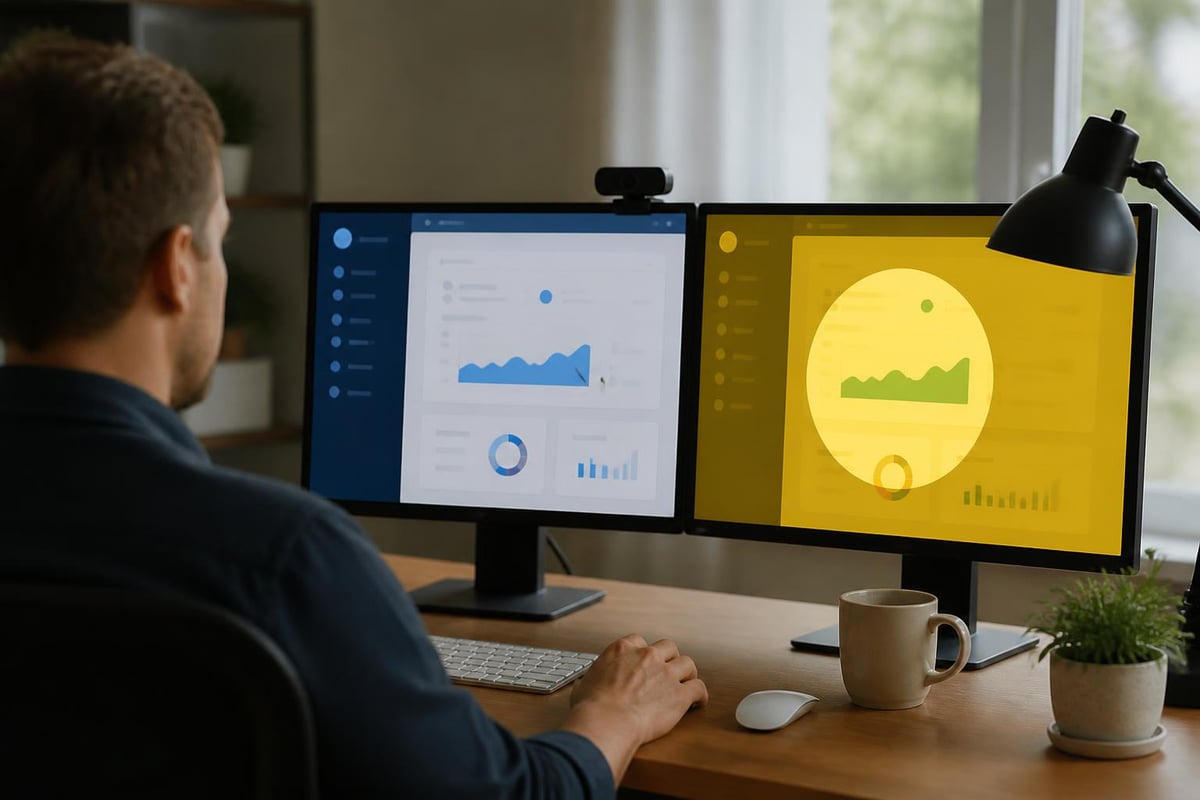
- Use highlights or annotations to draw attention to specific elements
- Zoom in on small details that might be hard to see
Think about your viewer's experience. They can't ask questions in real-time, so you need to anticipate confusion. When clicking through menus, say what you're doing out loud: "Now I'm going to click on Settings in the top right corner."
The Power of Natural Narration
Read this next part carefully: you don't need to sound like a professional voiceover artist. In fact, being too polished can make you seem robotic. Conversational, friendly narration works better for most screen recordings.
Talk like you're explaining something to a colleague. Use "we" instead of "you" to create partnership. "Let's click here" feels more collaborative than "You should click here."
If you mess up, keep going. You can edit later, or in many cases, those small stumbles make you seem more human and relatable. Perfect is boring.
Common Video Screen Capture Use Cases
Let's break down specific scenarios where screen recording shines.
Software Tutorials and Onboarding
New software can be intimidating. A well-crafted video screen capture tutorial reduces friction and gets users productive faster. Show the actual interface, walk through common tasks, and address frequent questions.
For employee onboarding, record processes once and share them repeatedly. This scales your training efforts and ensures consistency across your organization. Need to capture your browser screen for training? Browser-based tools make this incredibly simple.
Bug Reporting and Technical Support
Developers love screen recordings because they show the exact steps to reproduce an issue. Instead of writing "the button doesn't work," you can show the sequence of clicks, the error message, and your system state.
Research on automating bug reproduction from screen recordings shows how valuable visual documentation is for technical teams. It eliminates the back-and-forth of trying to describe what went wrong.
Sales Demos and Product Walkthroughs
Want to close more deals? Send personalized video screen captures showing prospects exactly how your product solves their specific problem. It's way more effective than a generic brochure.
You can highlight features relevant to their industry, address their pain points directly, and create a connection that text alone can't match.
Educational Content and Courses
Online learning exploded over the past few years and isn't slowing down. Video screen capture makes it possible to teach complex software skills, programming concepts, or data analysis techniques effectively.
Students can watch, pause, and rewatch at their own pace. The glossary definition and best practices for screen recording emphasizes how educational content benefits from clear, well-paced demonstrations.
Optimizing Your Video Screen Capture Workflow
Once you start recording regularly, efficiency becomes crucial. Here's how to streamline your process.
Keyboard Shortcuts Are Your Friend:
- Set up hotkeys to start/stop recording instantly
- Learn shortcuts for annotation tools
- Create custom shortcuts for frequently used functions
Batch Similar Content: If you're creating multiple tutorials on related topics, record them in one session. You're already in the zone, your environment is set up, and your energy is consistent.
Template Your Intros and Outros: Create reusable intro sequences with your branding. Same with outros that include calls-to-action or next steps. This saves time and creates brand consistency.
For teams that need to collaborate on screen recordings and access them later, tools like Mool convert your videos into searchable knowledge bases. This means you can find that specific tutorial about updating customer data by searching for keywords, not by scrubbing through hours of footage.
File Management and Storage
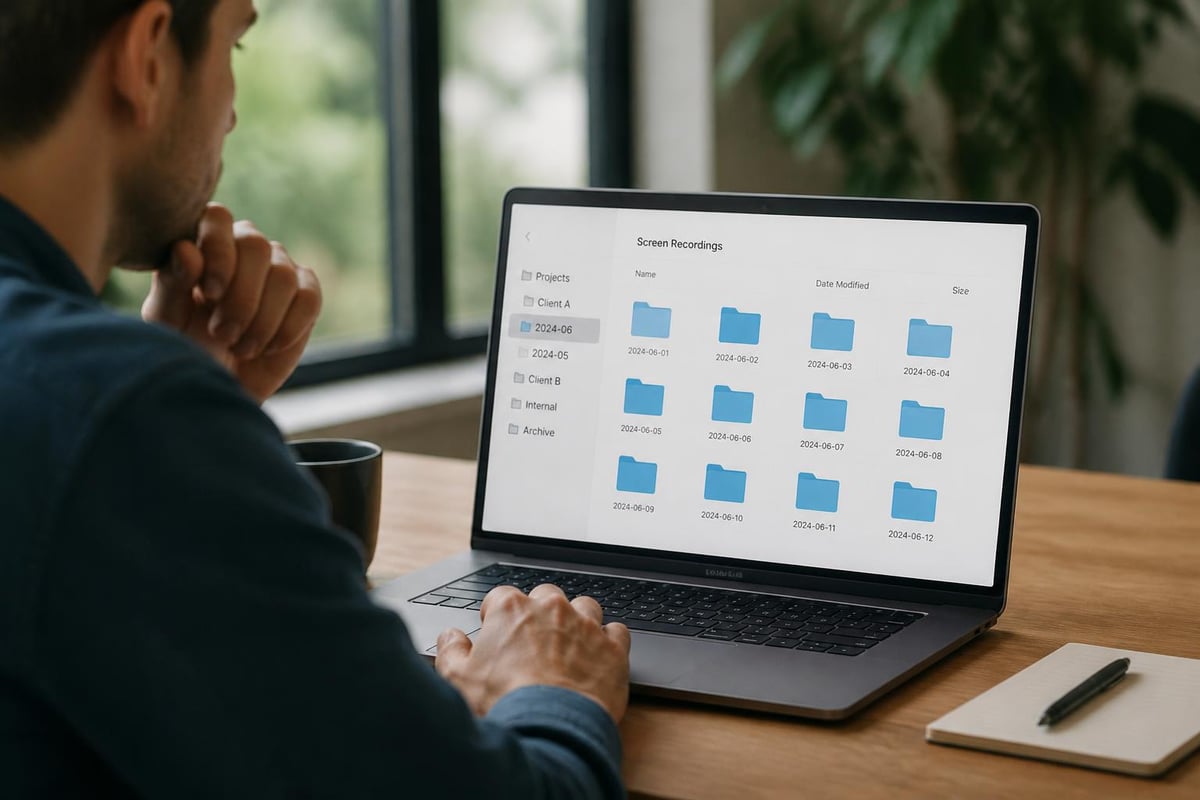
Screen recordings create large files quickly. Establish a system early:
| Storage Strategy | Pros | Cons |
|---|---|---|
| Local Storage | Fast access, full control | Limited space, no collaboration |
| Cloud Storage | Accessible anywhere, shareable | Requires internet, monthly costs |
| Hybrid Approach | Best of both worlds | Requires management |
Name your files descriptively. "Screen Recording 2026-05-28 at 2.45 PM" tells you nothing. "Customer-Onboarding-Payment-Setup-May2026" tells you everything.
Advanced Tips for Professional Results
Ready to level up? These techniques separate amateur screen recordings from professional content.
Multiple Takes Are Normal
Professional video creators rarely nail it on the first try. Record multiple versions of tricky sections. You can either pick the best one or edit together the strongest parts of each.
Don't let perfectionism paralyze you, but also don't settle for a recording where you clearly lost your train of thought or stumbled through important information.
Add Visual Interest
Screen recordings can get monotonous. Break things up with:
- Zoom transitions to focus on specific areas
- Callout boxes highlighting important buttons or fields
- Text overlays summarizing key points
- Cursor effects making your pointer more visible
Most modern screen recording tools include these features natively. Experiment to find what works for your content style.
Consider Your Export Settings
The right export settings balance quality and file size. For internal documentation, higher compression is fine. For client-facing content, prioritize quality.
Common Export Formats:
- MP4 - Most compatible, good compression
- MOV - Higher quality, larger files
- WebM - Excellent for web playback
- GIF - Great for short loops, very limited
Match your format to your distribution method. Uploading to YouTube? They'll re-encode anyway, so moderate quality is fine. Embedding on your website? Web-optimized formats load faster.
Accessibility and Inclusivity in Screen Recordings
Making your video screen capture content accessible isn't just nice - it's essential for reaching everyone.
Add captions or transcripts to every recording. This helps people with hearing impairments, non-native speakers, and anyone watching in a sound-sensitive environment (like a library or open office).
Describe what you're doing verbally, even if it seems obvious visually. "I'm clicking the blue Save button in the bottom right" is better than just clicking silently.
Use sufficient color contrast in your demonstrations. Tools that rely on color alone to convey meaning exclude people with color blindness.
The Future of Video Screen Capture
AI is transforming how we create and interact with screen recordings. Automatic transcription, smart chapter detection, and searchable video content are becoming standard features rather than premium add-ons.
Studies on translating screen recordings into replayable scenarios show how screen capture technology continues evolving beyond simple recording into interactive, programmable content.
Voice commands for controlling recording, real-time background replacement, and automatic editing suggestions are on the horizon. The barrier between capturing your screen and having a polished video continues to shrink.
Getting Started Today
You don't need expensive equipment or technical expertise to start creating valuable video screen capture content. Pick a tool that matches your needs, whether that's free screen capture tools for occasional use or professional platforms for daily recording.
Start simple. Record a quick how-to for something you do regularly. Share it with a colleague and get feedback. You'll be surprised how much a short video can help someone who's struggling with the same task.
The key is consistency. The more you record, the more comfortable you'll become. Your first ten recordings might feel awkward, but by number twenty, you'll have developed your own style and rhythm.
Quick Start Checklist:
- Choose your recording tool
- Set up your workspace (close tabs, notifications off)
- Test audio levels
- Outline what you'll cover
- Do a quick test recording
- Record your content
- Review and edit if needed
- Share with your intended audience
Remember, done is better than perfect. A helpful video with minor imperfections beats a perfect video that never gets made.
Video screen capture has become an essential skill for effective communication in 2026, whether you're teaching, troubleshooting, or selling. The right approach combines good planning, engaging delivery, and tools that make sharing effortless. If you're ready to start creating screen recordings that actually get watched and used, Mool makes it simple to record, share, and transform your videos into searchable knowledge - all from your browser. Start recording smarter today.