Screen Recorder No Watermark: Best Free Tools in 2026
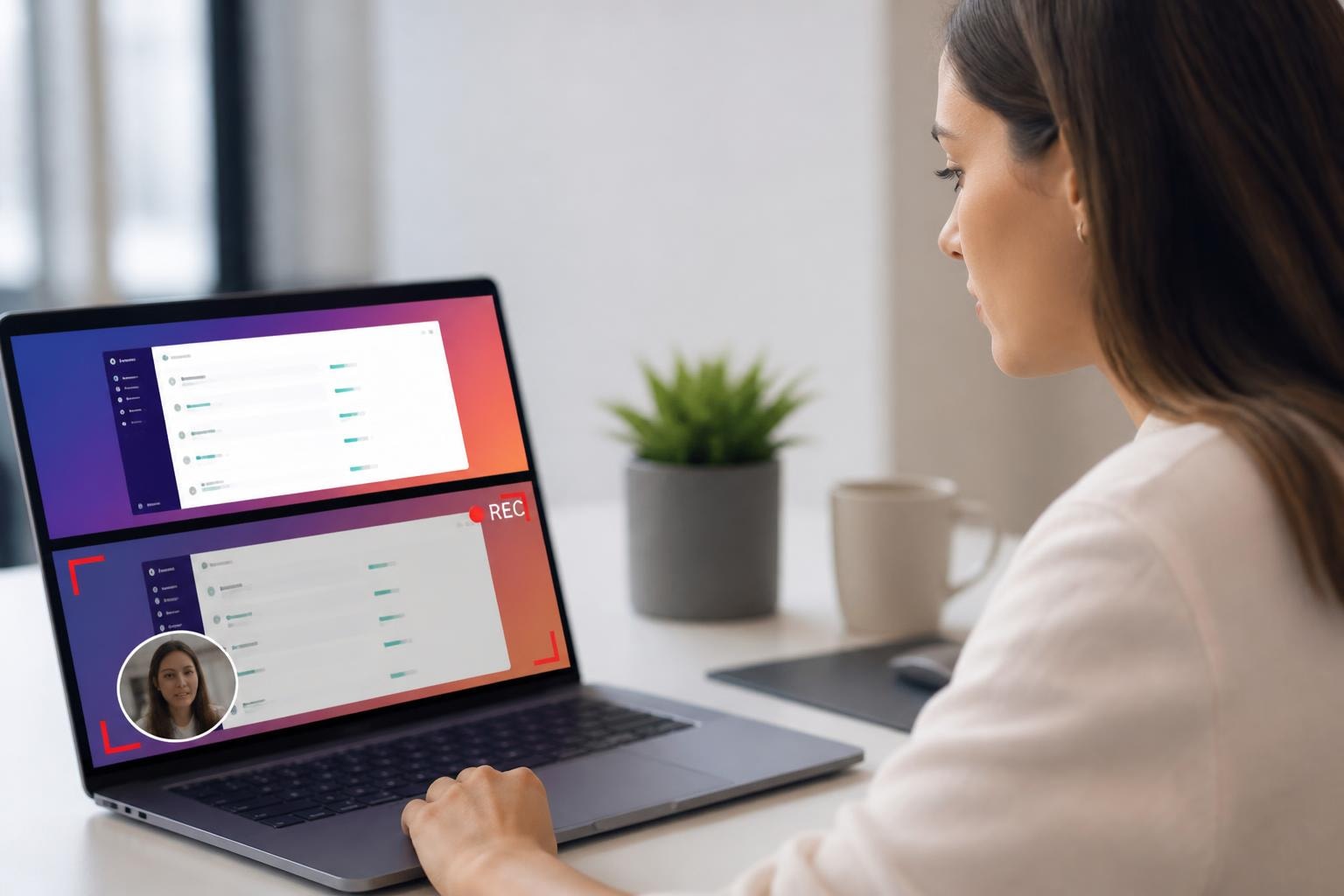
Finding a quality screen recorder no watermark feels like hunting for treasure these days. You've probably noticed that most free screen recording tools slap their logo right across your videos, which looks pretty unprofessional when you're trying to create tutorials, demos, or presentations. The good news? There are actually solid options out there that won't brand your content, and I'm here to walk you through everything you need to know about recording your screen without those annoying overlays.
Why Watermarks Are Such a Pain
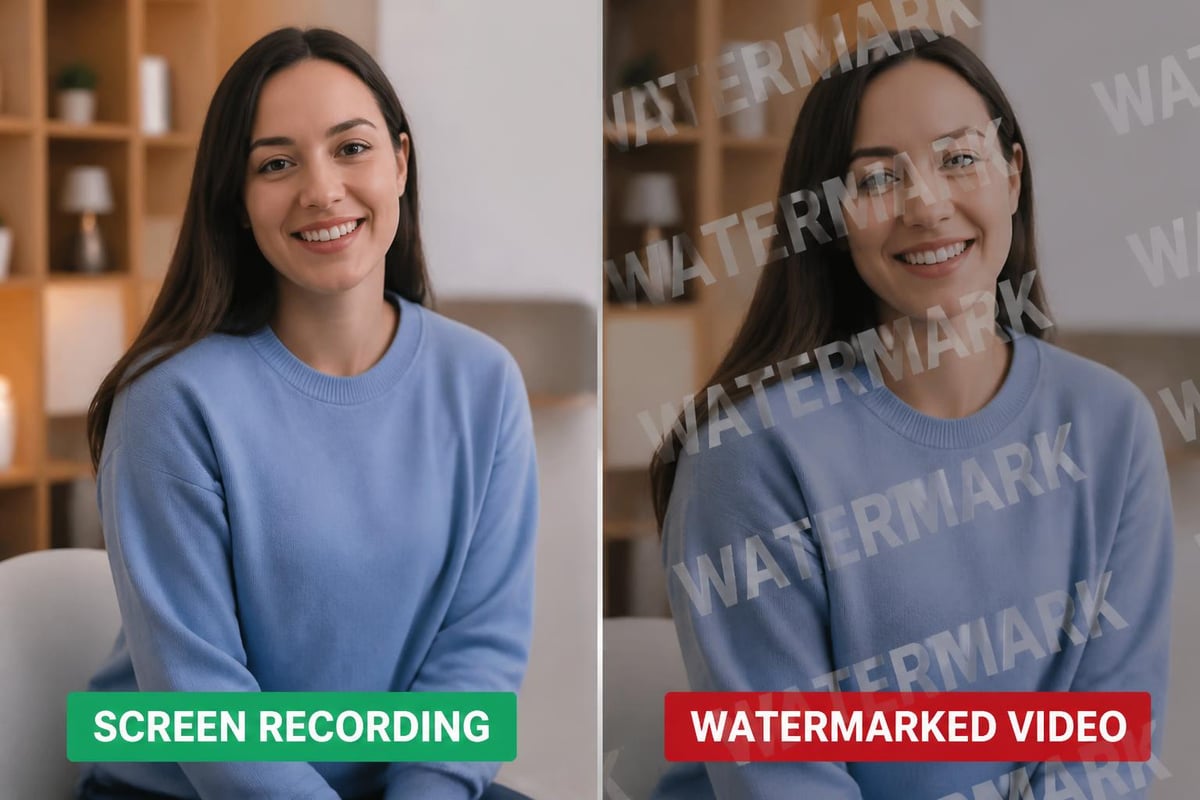
Let's be real for a second. Watermarks destroy the professional look of your videos. Whether you're creating training materials for your team, recording a product demo for potential clients, or building educational content, having someone else's branding plastered across your work just doesn't cut it.
The whole watermark thing is basically how companies push you toward their paid plans. They're betting you'll get frustrated enough to pull out your credit card. But here's the thing: you don't actually need to pay for basic screen recording functionality in 2026.
The Hidden Costs of Watermarked Videos
Think about what happens when you share a watermarked video with your team or clients:
- Your credibility takes a hit because it looks like you're using budget tools
- Viewers get distracted by the branding overlay instead of focusing on your content
- You can't use the footage for professional projects or presentations
- Editing becomes harder because you're working around the watermark
Professional appearance matters, especially in business contexts. That watermark might seem like a small detail, but it sends a message you probably don't want to send.
Top Features to Look for in a Screen Recorder No Watermark
Not all free screen recorders are created equal, even among those that skip the watermark. Here's what separates the winners from the also-rans:
Recording Quality and Format Options
You want at least 1080p recording capability in 2026. Anything less looks fuzzy on modern displays. Check whether the tool exports to common formats like MP4, MOV, or WebM. Some tools only export to proprietary formats, which creates headaches later.
Audio Flexibility
Good screen recorders let you capture:
- System audio (what's playing on your computer)
- Microphone input (your narration)
- Both simultaneously
- Neither (silent recordings)
This flexibility matters more than you might think. Different projects need different audio setups, and you don't want to be locked into one option.
Recording Modes
| Mode | Best For | Example Use Case |
|---|---|---|
| Full Screen | Presentations, gaming | Recording a slideshow or gameplay |
| Window Capture | Software tutorials | Showing specific application features |
| Custom Region | Focusing on details | Highlighting particular interface elements |
| Webcam Overlay | Personal touch | Adding your face to tutorials |
The more modes available, the more versatile your recording setup becomes.
Best Free Screen Recorder No Watermark Options
Let me break down some actual tools you can start using today. Each has different strengths depending on what you're trying to accomplish.
Browser-Based Solutions
If you need something quick without installation hassle, browser extensions are your friend. Mool is a Chrome extension that handles screen recording directly from your browser without watermarks, plus it converts your recordings into searchable knowledge using AI. It's particularly handy when you're already working in Chrome and want to quickly capture and share something with your team.
Browser-based recorders work great for:
- Quick team updates
- Bug reports with visual context
- Client walkthroughs
- Documentation creation
The main advantage? No installation required, and you can start recording in seconds.
Desktop Applications for Power Users
Desktop apps typically offer more advanced features. According to TechRadar's comprehensive guide, OBS Studio leads the pack for feature-rich recording without watermarks. It's completely free and open-source, though there's definitely a learning curve.
OBS Studio strengths:
- Unlimited recording time
- Scene switching and transitions
- Advanced audio mixing
- Streaming capabilities built-in
The downside? It's not exactly beginner-friendly. You'll spend some time learning the interface before you're productive.
Operating System Specific Tools
Windows and Mac both include built-in screen recording capabilities that many people don't even realize exist.
For Windows users, Xbox Game Bar comes pre-installed on Windows 10 and 11. Press Win + G to launch it. While designed for gaming, it works perfectly for regular screen recording too. For more advanced Windows options, check out this guide on free screen capture tools.
Mac users have QuickTime Player, which handles basic screen recording without any watermarks. It's simple and reliable, though it won't blow your mind with features.
Getting Professional Results Without Paid Software
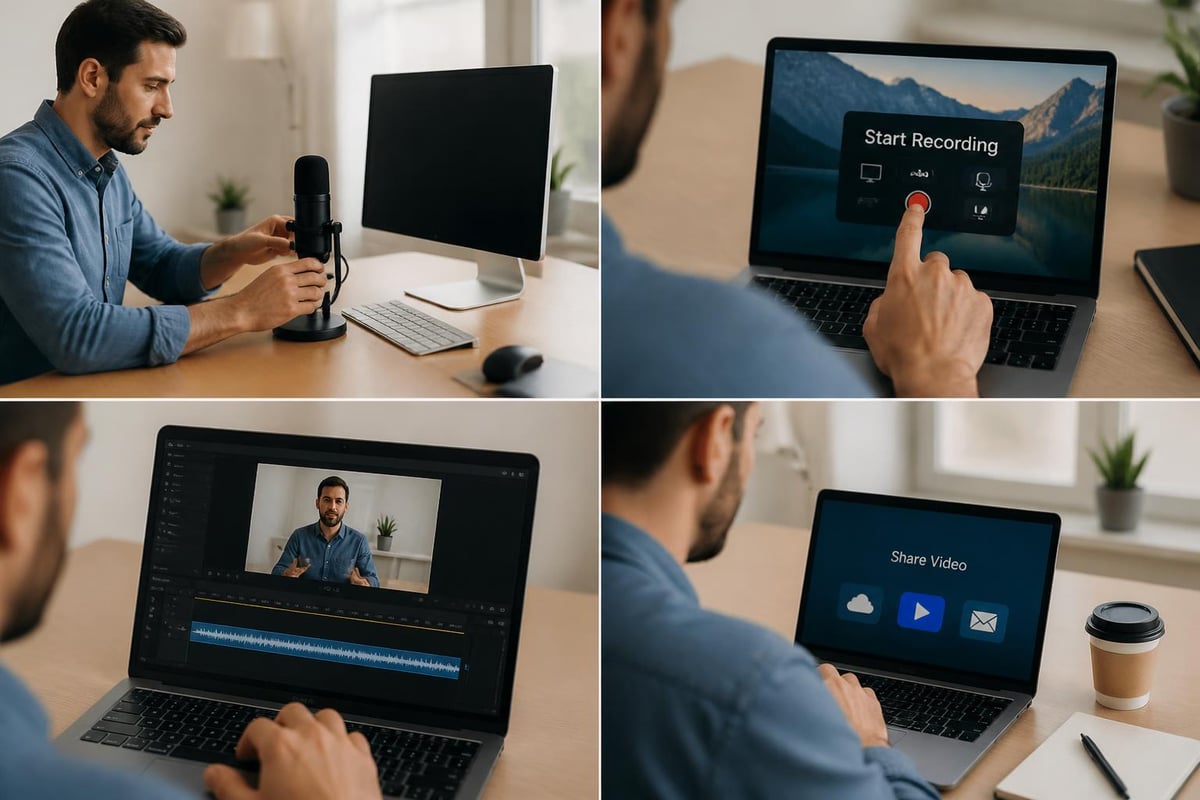
Having a screen recorder no watermark is just the starting point. Here's how to make your recordings actually look professional.
Preparation Beats Everything
Before you hit that record button:
- Close unnecessary applications to avoid embarrassing notifications popping up
- Clean up your desktop because nobody needs to see your cluttered files
- Prepare a script or outline so you're not fumbling around
- Test your audio levels to avoid that terrible quiet recording everyone has to strain to hear
- Choose the right resolution for your intended platform
These five minutes of prep save hours of editing later.
Recording Best Practices
Keep your recordings crisp and watchable:
- Speak clearly and at a moderate pace. Rushing makes people rewind constantly.
- Use keyboard shortcuts instead of hunting through menus with your mouse
- Pause before and after important actions to make editing easier
- Keep recordings focused on one topic instead of rambling across multiple subjects
The best tutorials are often the shortest ones that get straight to the point.
Post-Recording Polish
Even without watermarks, your video might need some touch-ups. Free video editing software can help you trim awkward pauses, add simple transitions, and insert text callouts. You don't need Hollywood-level editing-just clean up the rough edges.
Common Pitfalls and How to Avoid Them
Let's talk about mistakes that trip up even experienced screen recorders.
The Time Limit Trap
Many "free" screen recorders without watermarks impose strict time limits. You might get 5 or 10 minutes per recording, which sounds fine until you're mid-tutorial and the recording just stops. Always check the time restrictions before committing to a tool.
Solutions:
- Break longer content into logical segments
- Use truly unlimited tools like OBS Studio
- Consider browser-based options for quick captures
File Size Nightmares
Recording in 4K at maximum quality creates massive files that choke your hard drive and take forever to upload. Be strategic about your settings based on your actual needs.
| Use Case | Recommended Resolution | Frame Rate | Storage Impact |
|---|---|---|---|
| Software tutorials | 1080p | 30fps | Moderate |
| Gaming content | 1080p-1440p | 60fps | High |
| Quick demos | 720p | 30fps | Low |
| Presentation recording | 1080p | 30fps | Moderate |
Match your settings to your purpose, not just "maximum everything."
Audio Sync Issues
Nothing's more frustrating than audio that drifts out of sync with video. This usually happens when your computer is struggling to keep up with recording demands.
Prevention steps:
- Close resource-heavy applications before recording
- Record to a fast drive (SSD is ideal)
- Lower your recording quality if sync problems persist
- Use separate audio recording only if absolutely necessary
Advanced Uses for Watermark-Free Screen Recording
Once you've mastered basic recording, here's where things get interesting.
Building Searchable Knowledge Bases
Instead of writing lengthy documentation, record yourself performing tasks. Screen recordings serve as visual SOPs (Standard Operating Procedures) that new team members can actually follow. The key is making these recordings searchable so people can find exactly what they need.
Some modern tools like browser-based recorders now include AI-powered search within video content, letting you jump straight to relevant moments instead of scrubbing through entire recordings.
Asynchronous Communication
Screen recordings are perfect for remote teams working across time zones. Rather than scheduling meetings, record your thoughts and share them. People watch on their schedule, and you've created a permanent reference.
This works brilliantly for:
- Code reviews with visual walkthroughs
- Design feedback with specific timestamps
- Bug reports that show exact reproduction steps
- Training materials that new hires can revisit
Content Repurposing
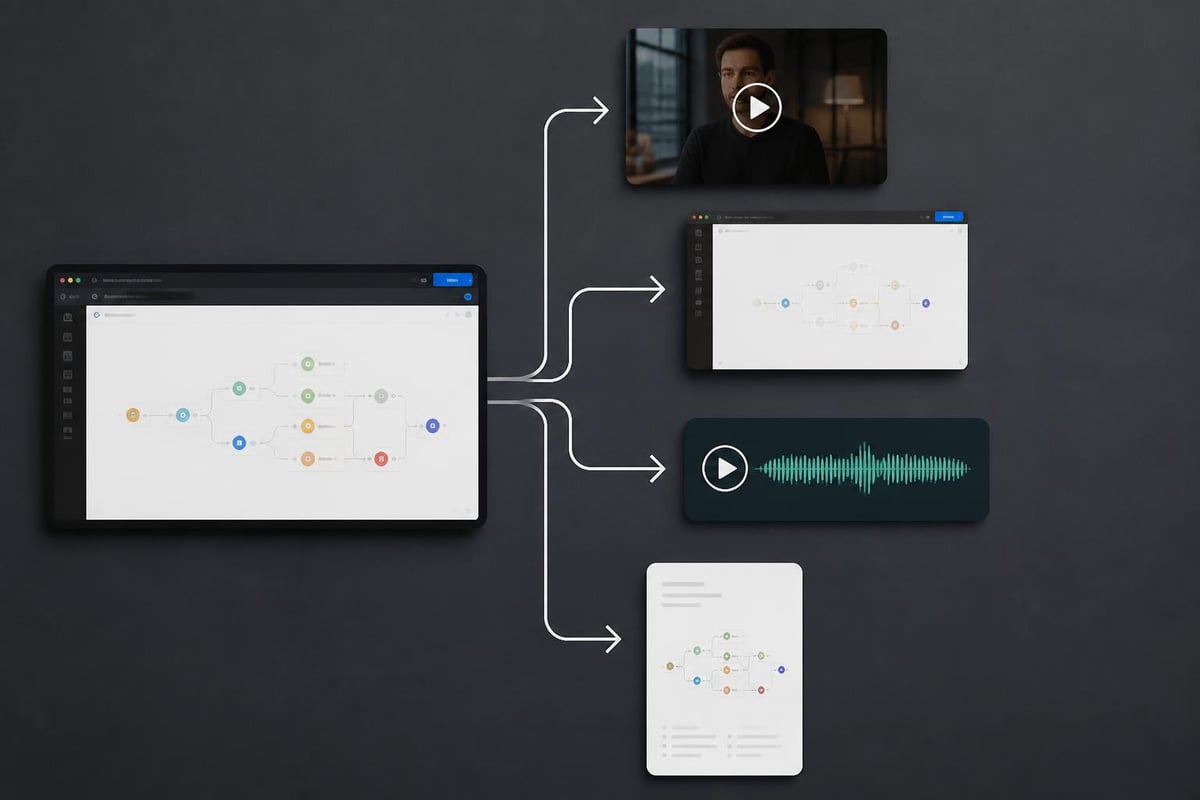
A single screen recording can become multiple content pieces. Extract the audio for a podcast episode, pull screenshots for blog posts, or chop it into shorter clips for social media. When you're using a screen recorder no watermark, you own that content completely and can repurpose it however you want.
Platform-Specific Considerations
Where you're recording matters more than you might think.
Chrome Users
If you spend most of your day in Chrome, extensions make the most sense. They integrate directly into your workflow without switching contexts. Check out this guide on Chrome screen recorder with audio for browser-specific tips.
Mac-Specific Workflows
Mac users have some unique advantages with built-in tools, but also specific quirks to navigate. The guide to screen recording on Mac covers platform-specific shortcuts and settings you'll want to know.
Windows Power Tips
Windows offers multiple recording paths, from the simple Xbox Game Bar to more complex setups. Understanding your options helps you pick the right tool for each situation.
Privacy and Security Considerations
Here's something people don't talk about enough: screen recordings can accidentally expose sensitive information.
Before recording, always:
- Close email clients and messaging apps
- Clear browser tabs with personal or confidential data
- Hide desktop files that shouldn't be visible
- Use annotation features to blur sensitive information
- Check your recording for private data before sharing
Once something's recorded and shared, you can't take it back. Better to spend an extra minute on privacy than to regret it later.
Password Protection and Secure Sharing
If you're sharing recordings externally, use tools that offer password protection or expiring links. This gives you control over who accesses your content and for how long. Many modern screen recorders now include these features built-in.
Optimizing Your Recording Setup
Your environment affects recording quality more than most people realize.
Audio Environment
Background noise kills otherwise great recordings. You don't need a professional studio, but you do need to minimize distractions:
- Record in a quiet room away from traffic noise
- Turn off fans, air conditioning, or heaters during recording
- Use a decent microphone (even a smartphone headset beats built-in laptop mics)
- Test audio levels before committing to a long recording
Visual Considerations
Your screen setup matters too:
- Increase font sizes so viewers on smaller screens can read text
- Use high-contrast color schemes for better visibility
- Disable cursor trails and animations that look distracting in recordings
- Set a professional desktop background instead of personal photos
Small details add up to a polished final product.
File Management and Organization
Creating recordings is one thing. Finding them later is another challenge entirely.
Naming Conventions That Actually Work
Don't just accept "ScreenRecording_2026_05_27.mp4" as your filename. Use descriptive names that include:
- Project or topic name
- Date in YYYY-MM-DD format (sorts chronologically)
- Version number if you're iterating
- Brief description of content
Example: 2026-05-27_ProductDemo_v2_CheckoutFlow.mp4
This seems boring until you're searching through 50 recordings trying to find that one specific demo you made three months ago.
Backup Strategy
Screen recordings represent invested time and effort. Losing them stings. Use a simple 3-2-1 backup strategy:
- Keep 3 copies of important recordings
- Store them on 2 different types of media (local drive + cloud)
- Keep 1 copy offsite (cloud storage counts)
Cloud storage has gotten ridiculously cheap. There's no excuse for losing important recordings to a hard drive failure.
The Future of Screen Recording
Looking ahead, screen recording technology keeps getting more sophisticated. AI-powered features are becoming standard, including automatic transcription, content indexing, and even smart editing that removes pauses and filler words.
We're also seeing better integration with collaboration tools. Instead of recording, exporting, uploading, and sharing as separate steps, modern tools handle everything in one flow. You hit stop, and the video's already shared with your team.
Emerging trends to watch:
- Real-time collaboration on recordings with annotation tools
- Automatic chapter markers based on content analysis
- Voice command control during recording
- Better mobile screen recording options that rival desktop quality
The barrier between creating and sharing content continues to shrink, which means more people can communicate visually without technical hurdles.
Finding the right screen recorder no watermark doesn't have to be complicated. Whether you choose a browser extension, desktop application, or built-in OS tool, the key is matching features to your actual needs rather than chasing every bell and whistle. If you're looking for a streamlined solution that works directly in Chrome with AI-powered searchability and professional sharing features, Mool offers browser-based recording without watermarks, plus tools to turn your recordings into lasting knowledge your team can actually use.