Screen Sharing and Recording: Complete Guide for 2026
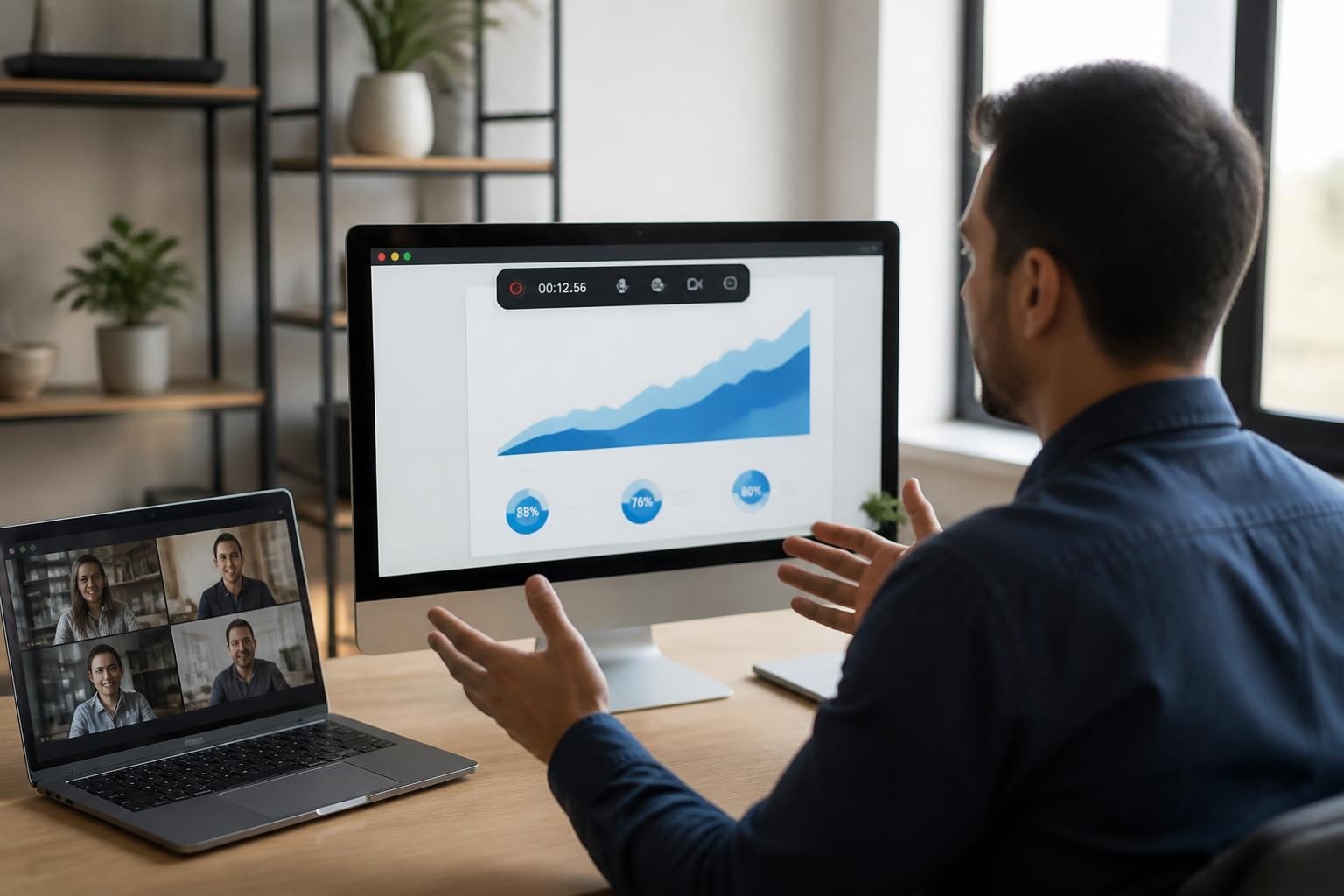
Screen sharing and recording have become essential tools for modern communication, transforming how we collaborate, teach, and document processes. Whether you're walking a colleague through a complex workflow, creating training materials, or troubleshooting technical issues remotely, these technologies bridge the gap between showing and telling. In 2026, the landscape has evolved beyond simple desktop sharing to include AI-powered search, instant annotation, and seamless integration with our daily workflows.
Why Screen Sharing and Recording Matter
The shift to remote and hybrid work has made visual communication more critical than ever. You can talk someone through a process, but nothing beats actually showing them your screen in real-time or providing a recorded walkthrough they can reference later.
Screen sharing lets you demonstrate software, present ideas, and collaborate in real-time. Recording takes this a step further by creating permanent resources that team members can review on their own schedule. This combination supports both synchronous and asynchronous work styles.
The Business Impact
Companies are seeing measurable benefits from effective screen sharing and recording practices:
- Reduced training time by 40-60% when employees can access recorded walkthroughs
- Faster problem resolution through visual troubleshooting instead of lengthy email chains
- Better knowledge retention with searchable video libraries
- Improved remote collaboration across time zones and locations
The data speaks for itself. Teams that leverage these tools report higher productivity and fewer miscommunications compared to those relying solely on written documentation.
Essential Tools and Technologies
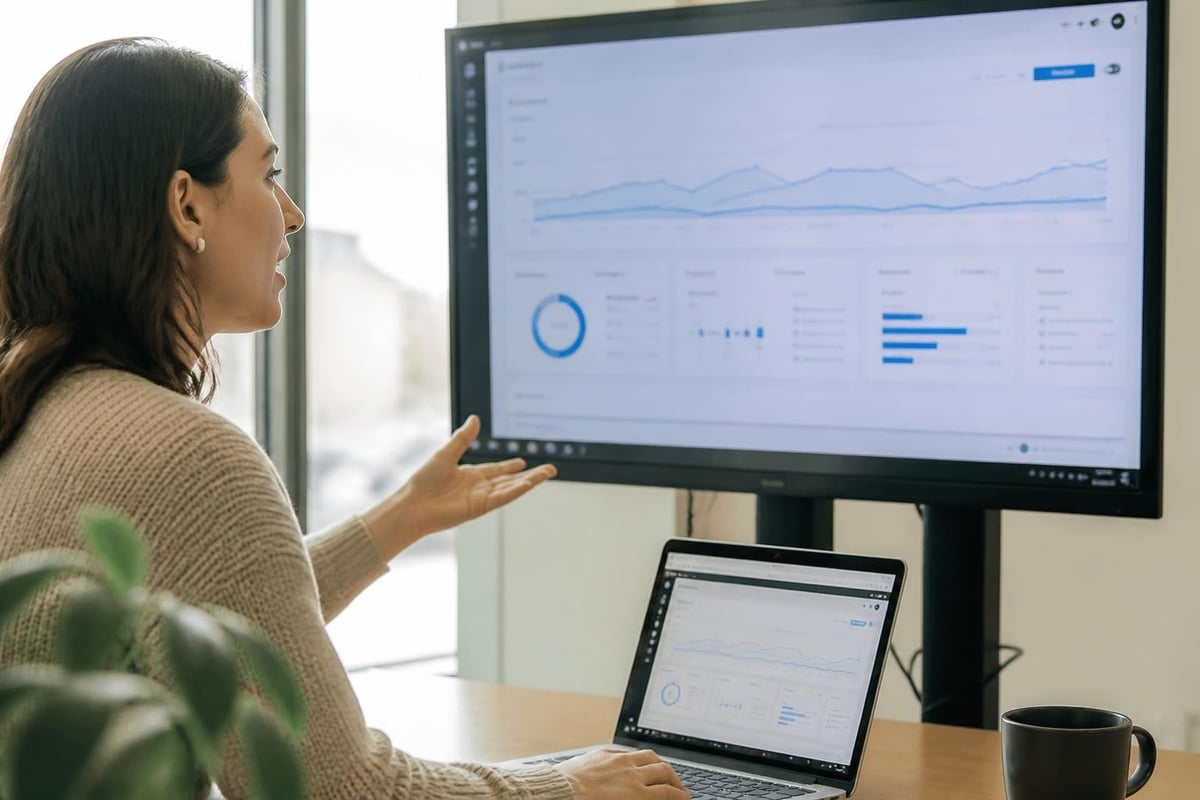
The screen sharing and recording ecosystem has matured significantly. You've got options ranging from basic built-in tools to sophisticated platforms with AI capabilities.
Browser-Based Solutions
Chrome extensions and web-based tools have gained popularity because they require zero installation and work across operating systems. These lightweight solutions integrate directly into your workflow without switching between applications.
Modern browser-based options offer surprising depth. They handle high-quality video screen capture, audio recording, and instant sharing through simple links. The convenience factor can't be overstated when you need to quickly record something without launching dedicated software.
Desktop Applications
Traditional desktop software still holds advantages for power users. These applications typically offer more encoding options, advanced editing features, and better performance for resource-intensive recordings.
| Tool Type | Best For | Key Advantage | Limitation |
|---|---|---|---|
| Browser Extension | Quick demos, tutorials | No installation needed | Feature limits |
| Desktop App | Professional content | Advanced controls | Requires setup |
| Built-in OS Tools | Basic capture | Already installed | Minimal features |
| Cloud Platforms | Team collaboration | Centralized storage | Subscription cost |
Best Practices for Screen Sharing
Getting the technical setup right makes the difference between a smooth presentation and a frustrating experience. Following established best practices for screen recording ensures your audience stays engaged.
Preparation Steps
Close unnecessary tabs and applications before you start. That browser with 47 open tabs? Your audience doesn't need to see that. Clean up your desktop, disable notifications, and prepare your content in advance.
Test your audio and video quality beforehand. Nothing derails a presentation faster than "Can you hear me?" repeated five times. Do a quick recording to verify everything works as expected.
Pre-session checklist:
- Close confidential documents and sensitive information
- Disable desktop notifications and pop-ups
- Check microphone levels and eliminate background noise
- Prepare materials in separate windows for easy switching
- Test internet connection stability
During the Session
Communicate clearly about what you're showing. "I'm now clicking on the settings menu in the top right corner" helps viewers follow along, especially in complex interfaces.
Use your cursor deliberately. Highlight important areas, move slowly between sections, and give viewers time to absorb information. Rushed cursor movements create confusion and make recordings harder to follow later.
Recording Best Practices
Creating effective recordings requires different considerations than live sharing. You're building a resource that people will reference repeatedly, so quality matters even more.
Technical Setup
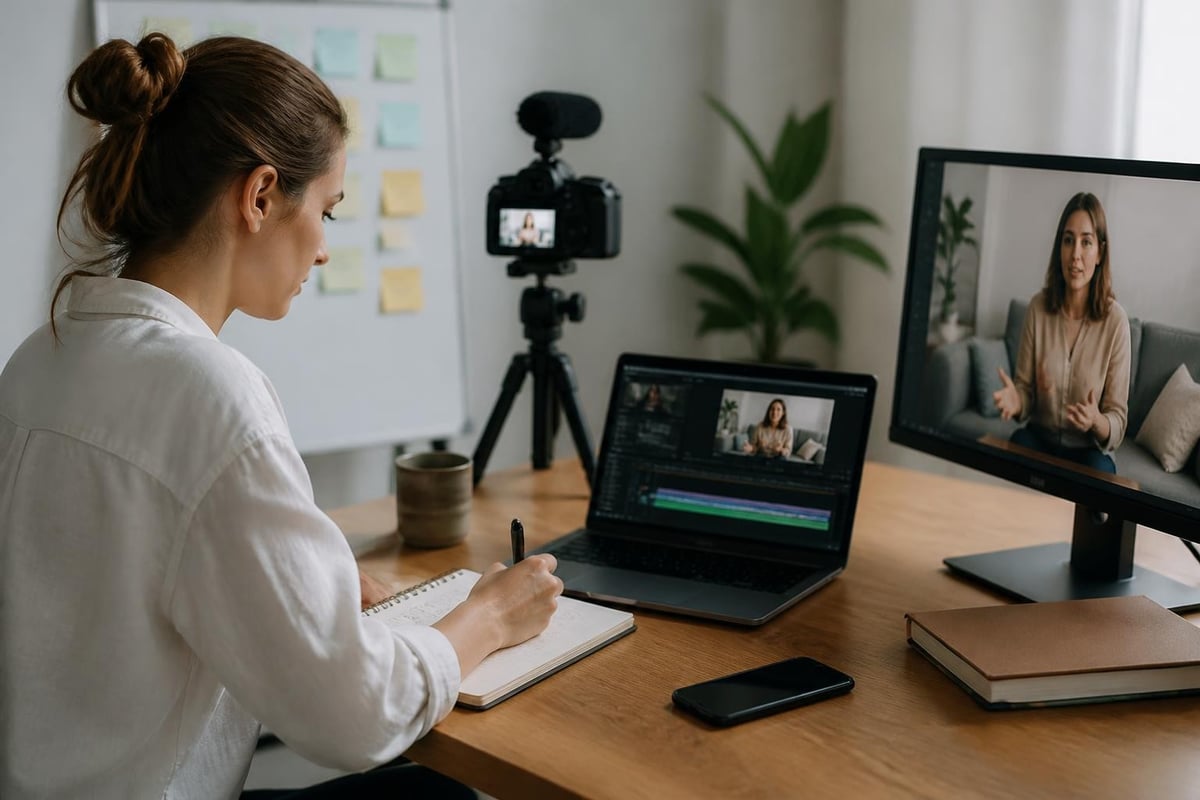
Resolution and frame rate impact both file size and viewer experience. For software demonstrations, 1080p at 30fps provides excellent clarity without creating massive files. Understanding screen recording and capture best practices helps optimize these settings.
Audio quality often matters more than video quality. Invest in a decent microphone or at least use headphones to prevent echo. Background noise, keyboard clicks, and mouse sounds distract from your message.
Content Structure
Plan your recording like you'd plan any presentation. Start with what you'll cover, walk through the content methodically, and summarize key points at the end. This structure helps viewers who skim through looking for specific information.
Effective recording structure:
- Brief introduction stating the topic and objectives
- Step-by-step demonstration with clear verbal explanation
- Common mistakes or troubleshooting tips
- Quick recap of critical points
- Next steps or related resources
Break long processes into shorter, focused recordings. A 5-minute video on one specific task beats a 30-minute marathon covering everything. People appreciate being able to find exactly what they need quickly.
Security and Privacy Considerations
Screen sharing and recording involve significant privacy and security implications that you can't ignore. Understanding whether screen sharing is safe depends largely on how you implement it.
Protecting Sensitive Information
Always review what's visible on your screen before sharing or recording. Email notifications, Slack messages, and browser bookmarks can reveal confidential information. Password managers, financial data, and personal communications should be hidden or closed.
Consider using a separate browser profile for recordings. This creates a clean environment without personal bookmarks, saved passwords, or browsing history. Many professionals maintain dedicated recording profiles to prevent accidental exposure.
Access Control and Sharing
Password protection and expiration dates add crucial security layers for recorded content. Not every video needs to live forever on the internet. Set appropriate permissions based on content sensitivity and audience.
Security checklist for recordings:
- Review full recording before sharing
- Add password protection for sensitive content
- Set expiration dates where appropriate
- Use platform features like annotation instead of revealing data
- Verify recipient permissions match content sensitivity
Following comprehensive privacy and security best practices for screen recordings protects both you and your organization from data breaches.
Common Use Cases and Applications
Different scenarios call for different approaches to screen sharing and recording. Understanding these distinctions helps you choose the right method and tools.
Customer Support and Troubleshooting
Visual support transforms the customer experience. Instead of describing steps over the phone, support teams can share screens to see exactly what users encounter. Recording these sessions creates a knowledge base that prevents repetitive explanations.
Quick screen recordings created through a browser recorder let support agents send personalized video responses to tickets. This personal touch resolves issues faster while building better customer relationships.
Training and Onboarding
New employee onboarding accelerates dramatically with recorded training materials. Rather than scheduling repeated sessions for each new hire, record comprehensive walkthroughs once and refine them over time.
Interactive elements like annotations and markers help trainees navigate complex processes. They can pause, rewind, and review difficult sections at their own pace without feeling rushed or embarrassed to ask questions.
Sales Demonstrations and Proposals
Personalized demo recordings let prospects review your product on their schedule. Sales teams record customized walkthroughs addressing specific pain points mentioned during discovery calls.
This approach respects busy schedules while ensuring consistent messaging. Every prospect receives the same high-quality presentation, and sales teams can track viewing analytics to understand engagement.
Advanced Features and Capabilities
Modern platforms have moved beyond basic capture to offer sophisticated functionality that enhances the entire workflow.
AI-Powered Search and Organization
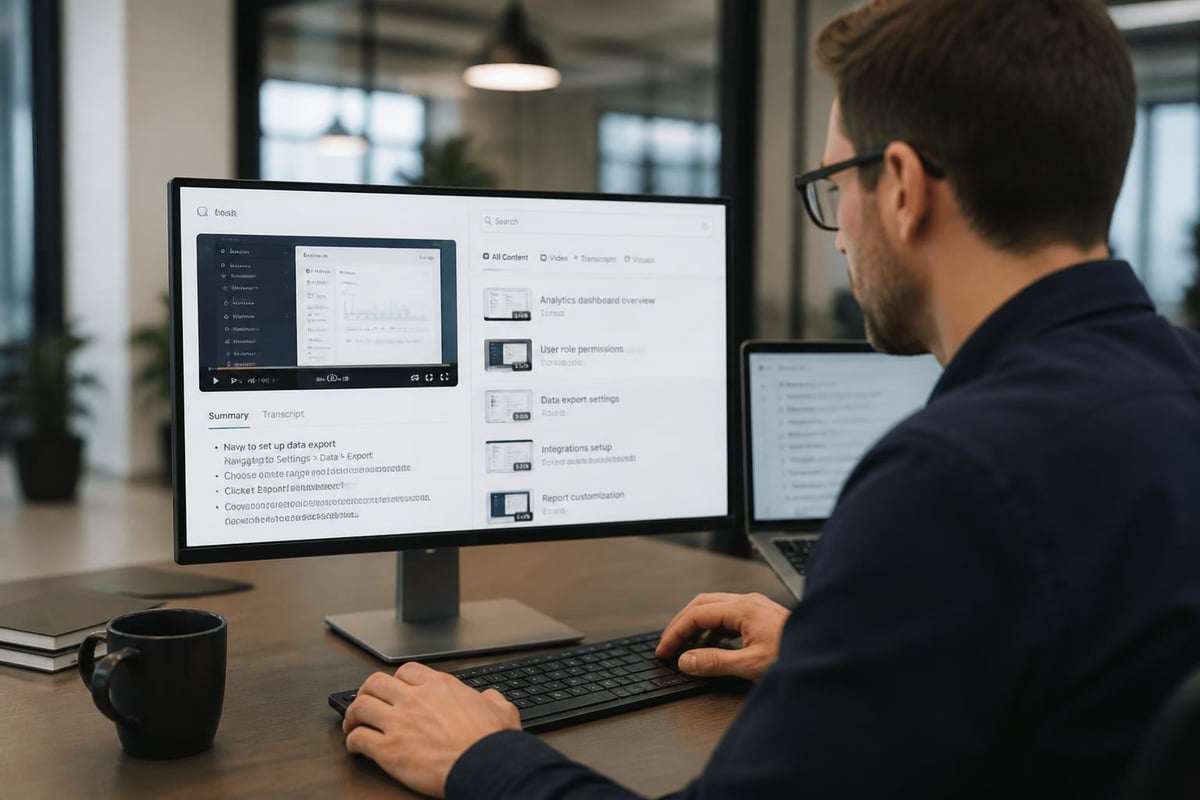
Converting recordings into searchable knowledge represents a game-changer for knowledge management. AI transcription creates text versions of every video, making spoken content discoverable through search.
Imagine finding that one specific troubleshooting tip buried in a 20-minute recording just by searching for keywords. This transforms video libraries from static archives into active, searchable resources.
Collaboration and Annotation
Annotation tools let viewers add comments, highlights, and questions directly on the video timeline. This creates threaded conversations around specific moments rather than vague references to "that part in the middle."
Teams can collaboratively review recordings, suggest improvements, and document decisions. The video becomes a living document that evolves with team input.
| Feature | Benefit | Best Use Case |
|---|---|---|
| AI Transcription | Searchable content | Large video libraries |
| Timeline Comments | Precise feedback | Review processes |
| Password Protection | Security control | Sensitive information |
| Instant Sharing | Quick distribution | Time-sensitive content |
| Edit-free Recording | Faster creation | Internal documentation |
Platform Integration and Workflow
Screen sharing and recording shouldn't exist in isolation. The best implementations integrate seamlessly with existing tools and processes.
Embedding in Documentation
Link recordings directly in your knowledge base, help center, or internal wiki. Written documentation explains the what, while embedded videos show the how. This combination addresses different learning styles and preferences.
Update links when you create new versions rather than deleting old recordings. Sometimes showing how something used to work provides valuable context for understanding current processes.
Team Collaboration Platforms
Integration with Slack, Teams, or other collaboration tools keeps videos where conversations happen. Share recordings directly in relevant channels, creating contextual knowledge that doesn't require searching external platforms.
Mool exemplifies this integrated approach by converting screen recordings into searchable knowledge with AI capabilities, instant sharing features, and annotation tools all accessible directly from your browser. It eliminates the friction between recording something and making it useful for your team.
Content Management Systems
For customer-facing content, integration with CMS platforms ensures videos complement other resources. Help articles become more effective when augmented with relevant screen recordings showing exact steps.
Version control matters here too. Track which recording corresponds to which software version, preventing outdated videos from confusing users.
Choosing the Right Solution
Your specific needs should drive tool selection. A solopreneur creating occasional tutorials has different requirements than an enterprise managing thousands of training videos.
Evaluation Criteria
Consider these factors when evaluating options:
For Individual Users:
- Ease of use and quick setup
- Cost-effectiveness for limited usage
- Quality of output for intended purpose
- Sharing options with collaborators
For Teams:
- Centralized storage and organization
- User permission management
- Searchability across all content
- Integration with existing tools
- Analytics and usage tracking
Free vs. Paid Tools
Free screen capture tools handle basic needs adequately. Built-in operating system tools and limited-feature platforms work fine for occasional recordings.
Paid solutions make sense when you're creating content regularly or need advanced features. The time savings from better organization, search, and collaboration often justify the investment quickly.
Audio Quality Considerations
Great visuals mean nothing if viewers can't understand what you're saying. Audio quality often determines whether someone watches your entire recording or clicks away.
Microphone Setup
Even basic external microphones outperform built-in laptop mics significantly. USB microphones under $50 deliver clear audio that sounds professional without breaking the budget.
Position yourself correctly relative to the microphone. Speaking across it rather than directly into it often produces better results and reduces plosive sounds.
Environment Control
Record in quiet spaces whenever possible. Background noise from air conditioning, traffic, or coworkers fragments attention and makes recordings harder to follow.
If you can't control the environment, focus on consistency. Regular background noise becomes less noticeable than random interruptions. Your brain filters out steady sounds more easily than unpredictable ones.
Processing and Enhancement
Light audio processing can improve clarity without requiring professional editing skills. Noise reduction, normalization, and compression make recordings sound more polished.
Many modern tools handle this automatically. Recording platforms apply intelligent audio enhancement that removes background noise and balances levels without manual intervention.
Mobile Screen Recording
Smartphones and tablets introduce unique considerations for screen sharing and recording. Mobile app demonstrations, game recordings, and mobile-first product tours require specialized approaches.
Platform-Specific Tools
iOS and Android include built-in screen recording, but they lack advanced features like annotation, editing, or easy sharing. Third-party apps fill these gaps with varying degrees of success.
Cross-platform consistency matters when demonstrating apps available on multiple operating systems. Ensure your mobile recordings maintain similar quality and style to desktop content.
Vertical vs. Horizontal
Mobile content orientation deserves consideration. Portrait recordings work better for social media and mobile viewing, while landscape maintains consistency with traditional video formats.
Match orientation to your distribution channel. Internal documentation might benefit from landscape orientation for desktop viewing, while customer-facing tutorials could use portrait for mobile users.
Measuring Success and Improvement
Creating recordings represents only half the equation. Understanding how people use them drives continuous improvement.
Analytics and Metrics
Track viewing patterns to understand what content resonates. High drop-off rates at specific points indicate confusing sections that need clarification or better structure.
Key metrics to monitor:
- View count and unique viewers
- Average watch time and completion rate
- Drop-off points within videos
- Search terms leading to content
- Comments and questions raised
Use this data to refine your approach. If viewers consistently skip the first 30 seconds, you're probably spending too much time on introductions.
Gathering Feedback
Direct feedback complements analytics. Ask viewers what they found helpful or confusing. Sometimes the most valuable insights come from unexpected questions about content you thought was crystal clear.
Create feedback loops that don't require extra effort from viewers. Simple thumbs up/down reactions or quick surveys embedded in the sharing platform gather input without creating barriers.
Creating a Recording Culture
Individual recordings help in the moment, but organizational impact requires systematic adoption. Building a culture where teams naturally document and share knowledge through recordings multiplies the benefits.
Making Recording the Default
Encourage team members to record explanations instead of typing lengthy instructions. "Let me record this" should become as natural as "Let me write that down."
Start with low-stakes situations. Record quick tips, process walkthroughs, or meeting highlights. As comfort grows, teams naturally expand to more formal content.
Building the Library
Organize recordings logically from the start. Haphazard collections become unusable quickly. Establish naming conventions, categorization systems, and metadata standards early.
Curate content regularly. Archive outdated recordings, update evolving processes, and promote frequently accessed resources. A well-maintained library stays valuable while neglected collections become digital landfills.
Recognition and Incentives
Acknowledge contributors who create valuable recordings. When someone's tutorial helps dozens of colleagues, celebrate that impact. Recognition reinforces the behavior and encourages others to contribute.
Mastering screen sharing and recording fundamentally changes how teams communicate, collaborate, and preserve knowledge. The technical aspects matter, but the real transformation happens when these tools become natural extensions of your workflow rather than separate tasks requiring special effort. Mool streamlines this entire process by letting you record, share, and search your screen recordings directly from Chrome, turning quick captures into lasting knowledge that teams can actually find and use when they need it.